> ## Documentation Index
> Fetch the complete documentation index at: https://docs.apiyi.com/llms.txt
> Use this file to discover all available pages before exploring further.
# Seedance 2.0 Asset Library (Character-Consistent Video)
> Use the icover.ai Asset Library open API (an APIYI product) to ingest images and get asset:// IDs, then generate character-consistent videos through the APIYI gateway. Supports zero-code web operation and REST API batch integration.
**icover.ai** is a sub-product of APIYI — an online tool for testing AI video generation. This asset library and its API help developers and customers ship "character-consistent video" features.
## Why an asset library
When generating character-consistent videos, Seedance 2.0 **does not accept reference images containing human faces directly** (anti-deepfake filtering). You must first ingest the image as a trusted asset, get an `asset://xxx` asset ID, and reference that ID in the video-generation request.
This service handles the ingest for you: just **upload an image → get an asset ID → generate the video**. There are two ways to use it, and the data is fully shared between them:
| Method | Best for | Requirements |
| ---------- | -------------------------------------------------- | ----------------------- |
| **Web UI** | Everyone, zero code | Just sign up and log in |
| **API** | Developers who need programmatic batch integration | An "Asset Library KEY" |
**Shared data**: for the same account, assets uploaded via the web and via the API live in the same library — API-created assets show up in the web asset list / archive and in the video generator's reference-image picker, and web-created assets can be listed via the API.
**The asset library follows your icover.ai account, not the KEY**: all Asset Library KEYs created under the same account are equivalent and access the same library — a KEY is just a call credential and provides no isolation. Assets are isolated per account; you can only see and operate on your own. For isolation and multi-team sharing options, see the [FAQ](#faq) below.
**Two different keys — do not mix them up**:
* **Asset Library KEY** (created on icover.ai, `sk-...`): only for the asset-library endpoints on this page (upload / ingest / query / delete).
* **APIYI SeeDance2 token** (created on api.apiyi.com, `sk-...`, with the `SeeDance2` group enabled): only for the video-generation endpoint.
## Method 1: Web UI (recommended for beginners)
Open the [icover.ai asset library page](https://icover.ai/en/seedance-official/asset-library) and sign up / log in.
On the "Virtual Avatar Ingest" tab: select images (multi-select supported) → click "Upload & Ingest".
* The asset group is optional; the system automatically uses your default group. Create a group first if you want to organize assets per character.
* Image requirements: jpeg / png / webp / bmp / tiff / gif / heic; aspect ratio 0.4–2.5; side length 300–6000px; under 30MB each.
Wait about ten-plus seconds; once the status turns "Active", copy the `asset://xxx` asset ID.
Go to the [icover.ai video generator](https://icover.ai/en/seedance-official): switch to "Multimodal" mode, set the reference image type to "Asset", select your asset, and refer to the character as "Image 1" in the prompt.
**Real-person assets (web version)**: three steps on the "Real-Person Verification" tab — 1) click "Generate verification link", have the actor scan the QR code / open the link on their phone, log in to their Volcengine account, and complete the liveness verification; 2) click "Query verification result" to get the actor's dedicated real-person asset group; 3) select that group and upload assets (images / video / audio) — they pass a face-consistency check and you get the `asset://` IDs. The same actor in different styling reuses the same group, no re-verification needed.
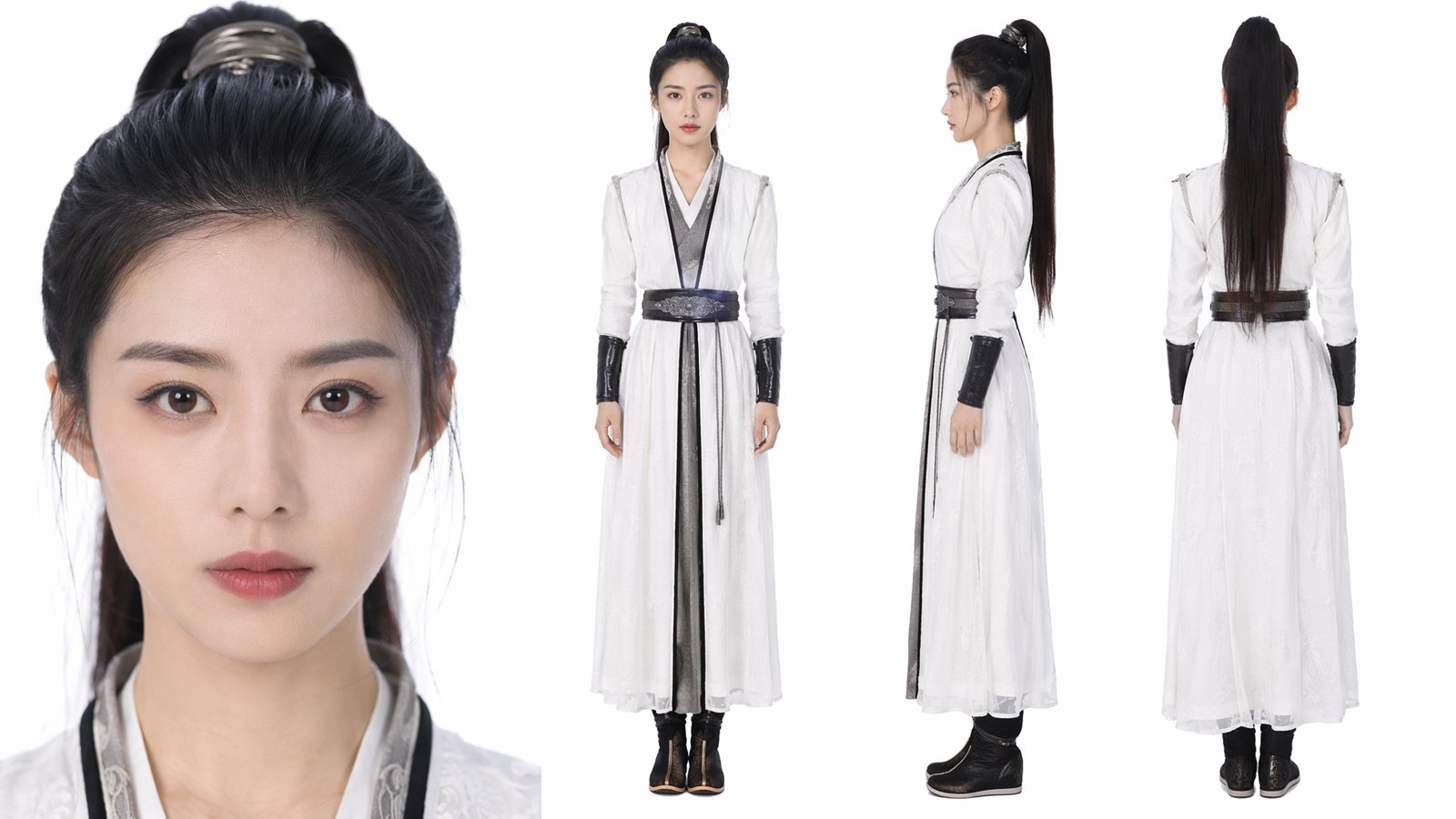
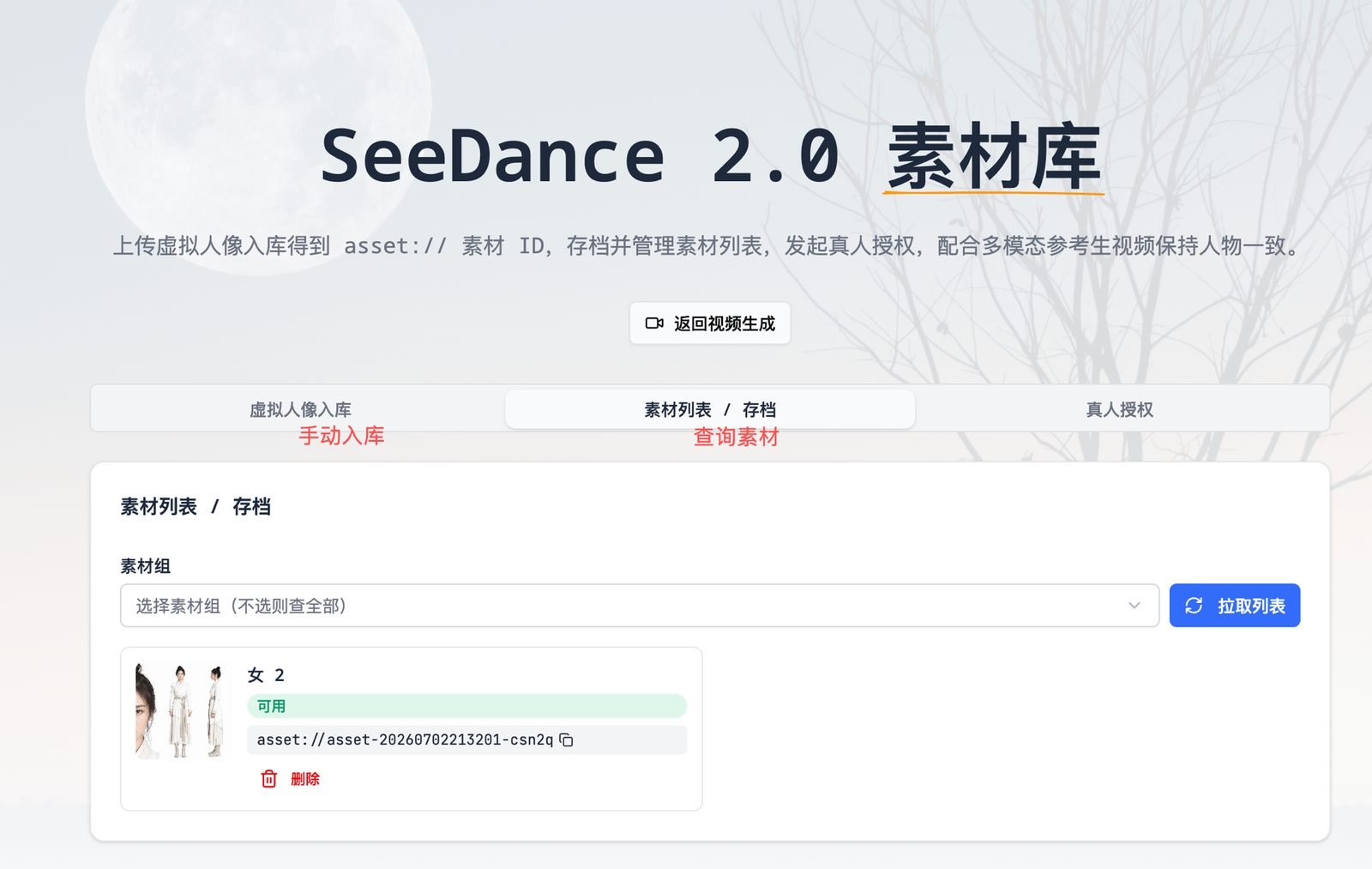 **Character-consistency tip**: put a full-body frontal shot and a neutral frontal face close-up of the same character into one asset group for the best results.
## Method 2: API (developers)
### Step 0: Create an Asset Library KEY
After logging in to icover.ai, go to Settings → Asset Library KEY (`icover.ai/en/settings/apikeys`) and create a KEY in the `sk-...` format.
**Character-consistency tip**: put a full-body frontal shot and a neutral frontal face close-up of the same character into one asset group for the best results.
## Method 2: API (developers)
### Step 0: Create an Asset Library KEY
After logging in to icover.ai, go to Settings → Asset Library KEY (`icover.ai/en/settings/apikeys`) and create a KEY in the `sk-...` format.
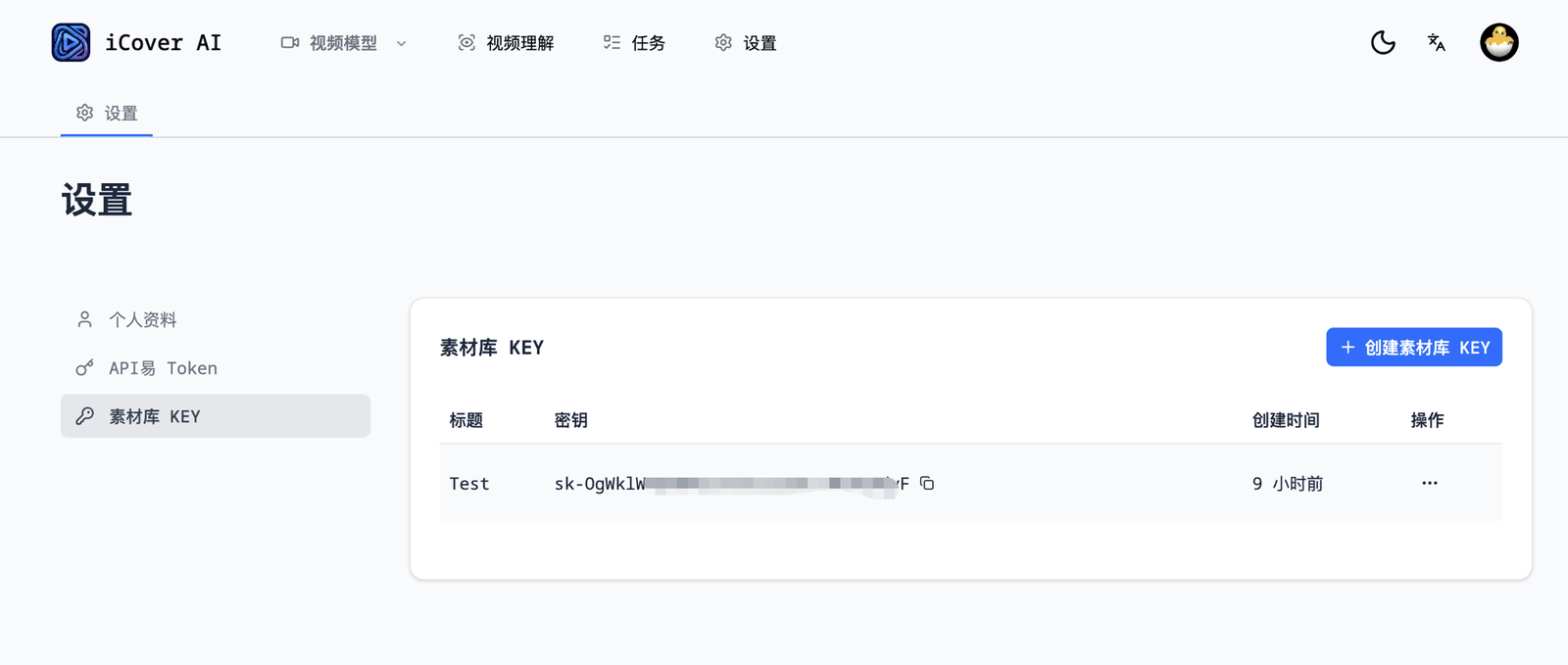 Include it in every asset-library request:
```
Authorization: Bearer sk-your-asset-library-KEY
```
### Step 1: Upload the file and get a public URL
The asset file (an image; real-person assets also support video / audio) must first be reachable via a public URL. Pick either route:
**A. You already have a public URL** (your own CDN / file host) → skip to Step 2.
**B. Upload to our storage** (two calls: request a presigned upload URL → PUT the file):
```bash theme={null}
# 1. Request a presigned upload URL
curl -X POST https://icover.ai/api/storage/presign \
-H "Authorization: Bearer sk-your-asset-library-KEY" \
-H "Content-Type: application/json" \
-d '{"ext":"jpg","contentType":"image/jpeg"}'
# → { "code":0, "data": { "uploadUrl":"...", "publicUrl":"https://cdn.icover.ai/..." } }
# 2. PUT the file to uploadUrl (Content-Type must match the presign request)
curl -X PUT "the-uploadUrl-you-just-received" \
-H "Content-Type: image/jpeg" \
--data-binary @portrait.jpg
# Once it succeeds, publicUrl is your file's public address
# Same for video/audio: swap ext/contentType to mp4/video/mp4, mp3/audio/mpeg, etc.
```
### Step 2: Ingest the asset
```bash theme={null}
curl -X POST https://icover.ai/api/asset-library/assets \
-H "Authorization: Bearer sk-your-asset-library-KEY" \
-H "Content-Type: application/json" \
-d '{
"imageUrl": "https://cdn.icover.ai/uploads/seedance/xxx.jpg",
"label": "actor-A-front"
}'
# → Raw Volcengine response: { ..., "Result": { "Id": "asset-20260702xxxx-xxxxx" } }
```
* `groupId` is optional: your default group is used / created automatically. To organize by character: first `POST /api/asset-library/groups {"name":"actor-A"}` to get a group ID, then include `"groupId":"group-xxx"` here.
* `label` is optional; it helps you identify assets in the web UI.
### Step 3: Poll until Active
Ingest is asynchronous (about 13 seconds per image, no SLA). Poll with the returned Id:
```bash theme={null}
curl https://icover.ai/api/asset-library/assets/asset-20260702xxxx-xxxxx \
-H "Authorization: Bearer sk-your-asset-library-KEY"
# → Result.Status == "Active" means ready; "Failed" means re-upload
```
We suggest polling every 3 seconds; treat 90 seconds without `Active` as a timeout to investigate.
### Step 4: Generate the video with the asset ID (via APIYI)
Write the asset ID as `asset://` and call APIYI with **your own APIYI SeeDance2 token** (not the asset library KEY):
```bash theme={null}
curl -X POST https://api.apiyi.com/seedance/api/v3/contents/generations/tasks \
-H "Authorization: Bearer sk-your-APIYI-token" \
-H "Content-Type: application/json" \
-d '{
"model": "doubao-seedance-2-0-260128",
"content": [
{"type":"text","text":"The character in Image 1 smiles at the camera, slow push-in, natural light"},
{"type":"image_url","image_url":{"url":"asset://asset-20260702xxxx-xxxxx"},"role":"reference_image"}
],
"ratio":"16:9","duration":5,"resolution":"720p"
}'
# Returns a task id; poll GET .../tasks/{id} until status=succeeded, then read content.video_url
```
Refer to the asset as "Image 1" in the prompt — **do not write the raw asset ID in the prompt**.
For model selection, pricing, and resolution tables see the [Seedance 2.0 Overview](/en/api-capabilities/seedance2/overview); for full generation parameters see the [Video Generation API](/en/api-capabilities/seedance2/video-generation). For a complete runnable end-to-end script (upload → ingest → generate → download), see the [Asset Reference Guide](/en/api-capabilities/seedance2/asset-reference).
### Full endpoint reference
| Endpoint | Method | Description |
| ---------------------------------------------- | --------------------- | --------------------------------------------------------------------------------------------------------------------------------------------------------------------------------------------------------------------------------------------------- |
| `/api/storage/presign` | POST | Request a presigned file upload URL `{ext?, contentType?}` |
| `/api/asset-library/groups` | POST / GET | Create a group `{name, description?}` / list your groups (including real-person groups) |
| `/api/asset-library/assets` | POST / GET | Ingest `{groupId?, imageUrl, label?, assetType?}` (assetType optional: `Image` / `Video` / `Audio`, default Image) / list assets (`?groupId=`, `?pageNumber=`, `?pageSize=` all optional; defaults to page 1, 100 per page, pageSize capped at 100) |
| `/api/asset-library/assets/{id}` | GET / DELETE / PATCH | Check status / delete / update label `{label}` |
| `/api/asset-library/real-person/sessions` | POST / GET | Start a real-person verification `{name?}` → returns the H5 verification link and query credential / list your verification sessions |
| `/api/asset-library/real-person/sessions/{id}` | POST / PATCH / DELETE | Query the verification result (returns the real-person asset group GroupId on success) / rename `{name}` / delete the record |
| `/api/asset-library/records` | GET | Your assets + real-person verification archive (web UI data source) |
**Response conventions**: asset-library endpoints pass through the **raw Volcengine JSON** on both success and failure (lists are filtered to your own assets); our own errors are plain text prefixed with `[client] ` (400/401/403/404/502); `records`, the GET/PATCH/DELETE of `real-person/sessions`, and asset `PATCH` return `{code, message, data}` JSON (code 0 = success).
## Real-face assets (fully automated API)
Real-person portraits require the person being filmed (the actor) to complete a one-time **liveness verification**, anchoring portrait-rights ownership at the source. The entire flow is now fully API-driven; the web UI's "Real-Person Verification" tab is the same flow with an interface:
### Step 1: Start a verification session and get the H5 link
```bash theme={null}
curl -X POST https://icover.ai/api/asset-library/real-person/sessions \
-H "Authorization: Bearer sk-your-asset-library-KEY" \
-H "Content-Type: application/json" \
-d '{"name":"actor-A"}'
# → Raw Volcengine response: { "Result": { "BytedToken":"2026...", "H5Link":"https://ark.volcengine.com/..." } }
```
* Send the `H5Link` to the actor to **open on their phone** (or turn it into a QR code to scan). They log in to their personal Volcengine account and complete the liveness verification. Lighting / camera angle can cause a failed attempt — just retry.
* `BytedToken` is the query credential; we store it with the session. `GET /api/asset-library/real-person/sessions` lists your sessions at any time (including id / status / h5Link).
### Step 2: Query the result once the actor finishes
```bash theme={null}
curl -X POST https://icover.ai/api/asset-library/real-person/sessions/{session-id} \
-H "Authorization: Bearer sk-your-asset-library-KEY"
# Verified → { "Result": { "GroupId": "group-xxxx" } } ← the actor's dedicated real-person asset group
# Not yet → 404 NotFound. (raw Volcengine text; this is normal — query again after verification)
```
Once you get the `GroupId`, the session status turns `authorized` and the real-person asset group is automatically archived to your account (it also shows up under the web UI's asset groups). **Note**: a pending verification returns the same `NotFound` as an expired credential — the two cannot be distinguished. A link left unused for a long time may expire; just start a new session.
### Step 3: Submit assets to the real-person group
Same ingest endpoint as virtual avatars — just pass the real-person group's `groupId`. Images, video, and audio are supported:
```bash theme={null}
curl -X POST https://icover.ai/api/asset-library/assets \
-H "Authorization: Bearer sk-your-asset-library-KEY" \
-H "Content-Type: application/json" \
-d '{
"groupId": "group-xxxx",
"imageUrl": "https://cdn.icover.ai/uploads/seedance/xxx.jpg",
"label": "actor-A-front-full-body",
"assetType": "Image"
}'
```
Then poll until `Active` as usual and generate videos with `asset://` (Step 4 is unchanged).
**Real-person asset rules and formats**:
* One real-person group holds **one person only**; the same actor in different styling reuses the same group — no re-verification needed.
* Every upload goes through a **face-consistency check** (videos are sampled every second, and every sampled frame must pass). Side profiles, multiple people, or blurry material will fail — use clear frontal material.
* Images under 30MB; video mp4 / mov, 2–15 seconds, ≤50MB, aspect ratio 0.4–2.5; audio mp3 / wav, 2–15 seconds, ≤15MB.
## Notes
**Treat asset:// IDs as secrets**: assets are isolated at this service layer (protected against listing and deletion), but Volcengine cannot authorize by ID — if an ID leaks, other callers on the same channel can reference it in generation requests. See the [FAQ](#faq) below for the full ownership and isolation model.
* **Image URL lifetime**: the preview URLs returned by query / list endpoints are temporary addresses valid for about 12 hours — do not cache them long-term; the asset ID itself is permanent.
* **Rate limits** (Volcengine account level): status query 100 QPS, ingest and other operations about 10 QPS. Control concurrency and retry on failure.
* **Web UI status sync**: after ingesting via API, if the status has never been queried, the web archive may show "processing"; open the asset list page and click "Refresh List" to sync the real status.
Volcengine official references (copy into your browser): private asset library guide `volcengine.com/docs/82379/2333565`, real-person asset onboarding `volcengine.com/docs/82379/2315856`.
## FAQ
Direct reference images cannot contain photorealistic human faces (the anti-deepfake filter rejects them). Once a portrait is ingested as a trusted asset, its `asset://` ID can be reused across any number of generation tasks, keeping the character's face and clothing consistent across episodes and shots — ideal for serialized content such as animated drama, short drama, and IP characters. Real people can appear on camera too: just complete the real-person verification flow described above.
In one line: **icover.ai isolates the assets; APIYI handles the unified calling — the generation side only checks the asset ID, and holding an ID is enough to reference it.**
It follows the **account**. The underlying architecture: all icover.ai users share a single unified APIYI Volcengine account, and the asset library belongs to that account; icover.ai adds a layer of **per-account isolation** at the service level — each account can only list / query / delete its own assets and cannot see anyone else's asset IDs.
KEYs provide no isolation: multiple Asset Library KEYs under the same account are equivalent and access the same library. If you need asset isolation (for example, separating data across customers or business lines), **register a separate icover.ai account for each party** and create KEYs under each — creating a new KEY under the same account does not isolate anything.
Mind the security boundary: this isolation covers listing / querying / deleting, but Volcengine cannot authorize by ID — once an `asset://` ID leaks, other callers on the same channel can reference it in generation requests. Treat asset IDs as secrets.
No. Whether through the web UI or the API, the asset library essentially **forwards** everything to Volcengine's official asset library endpoints: image / video / audio content goes straight to Volcengine for processing, which returns only an `asset://` ID. We don't store or log the raw asset content ourselves — we only keep that ID and its account ownership (used for the per-account isolation described above).
Real-face assets carry an extra hard requirement: the person being photographed must complete **live face verification** in person (signing into their own Volcengine account to do face recognition), which locks down portrait-rights ownership at the source — no one else can complete this verification on their behalf. See "Real-face assets" above for the full flow.
**Share one library (recommended, simplest)**: one account + one KEY is enough. Manage asset IDs centrally in your own system and distribute the `asset://` IDs to each department — holding an ID is all it takes to reference it in a video-generation request (video generation uses each department's own APIYI SeeDance2 token, unrelated to the Asset Library KEY). You can also create multiple KEYs under the same account and hand them to different departments (convenient for credential rotation / revocation) — these KEYs still access the same library.
**Isolate between departments**: register a separate icover.ai account for each department, each with its own KEYs. Note that isolation covers listing / querying / deleting — a leaked asset ID can still be referenced, so avoid spreading IDs casually even across departments.
Yes. APIYI's SeeDance2 channel runs the official full-capability `doubao-seedance-2-0-260128` — model parameters, resolutions, and durations are identical to the official offering, with nothing cut down. See the [Seedance 2.0 Overview](/en/api-capabilities/seedance2/overview) for model details and pricing.
No, it does not count as a real person. An AI-generated photorealistic portrait with no real-world counterpart (for example, a character generated with a model like Nano Banana) is a **virtual avatar** — it goes straight through the virtual-avatar ingest flow with no authorization step. Only a photo of a **real, existing person** counts as a real face — for those, uploading does NOT imply authorization; the virtual-avatar ingest channel rejects them, and the person being filmed must complete liveness verification (see the real-face section above).
The three kinds of character material:
| Material type | Examples | How to use |
| ----------------------------------------------------- | ---------------------------------------------------------- | ------------------------------------------------------------------------------------------------------------------- |
| Anime / stylized characters | Anime, cartoon, 3D-cartoon characters | No photorealistic face, generally not blocked: use a public URL / Base64 reference image directly, no ingest needed |
| Virtual avatar (AI-generated photorealistic portrait) | Model-generated, no such person exists (see example below) | Use the virtual-avatar ingest on this page and reference the `asset://` ID |
| Real face | Photos of celebrities, models, or the user themselves | Use the fully automated real-person verification API flow; usable once the person completes liveness verification |
Include it in every asset-library request:
```
Authorization: Bearer sk-your-asset-library-KEY
```
### Step 1: Upload the file and get a public URL
The asset file (an image; real-person assets also support video / audio) must first be reachable via a public URL. Pick either route:
**A. You already have a public URL** (your own CDN / file host) → skip to Step 2.
**B. Upload to our storage** (two calls: request a presigned upload URL → PUT the file):
```bash theme={null}
# 1. Request a presigned upload URL
curl -X POST https://icover.ai/api/storage/presign \
-H "Authorization: Bearer sk-your-asset-library-KEY" \
-H "Content-Type: application/json" \
-d '{"ext":"jpg","contentType":"image/jpeg"}'
# → { "code":0, "data": { "uploadUrl":"...", "publicUrl":"https://cdn.icover.ai/..." } }
# 2. PUT the file to uploadUrl (Content-Type must match the presign request)
curl -X PUT "the-uploadUrl-you-just-received" \
-H "Content-Type: image/jpeg" \
--data-binary @portrait.jpg
# Once it succeeds, publicUrl is your file's public address
# Same for video/audio: swap ext/contentType to mp4/video/mp4, mp3/audio/mpeg, etc.
```
### Step 2: Ingest the asset
```bash theme={null}
curl -X POST https://icover.ai/api/asset-library/assets \
-H "Authorization: Bearer sk-your-asset-library-KEY" \
-H "Content-Type: application/json" \
-d '{
"imageUrl": "https://cdn.icover.ai/uploads/seedance/xxx.jpg",
"label": "actor-A-front"
}'
# → Raw Volcengine response: { ..., "Result": { "Id": "asset-20260702xxxx-xxxxx" } }
```
* `groupId` is optional: your default group is used / created automatically. To organize by character: first `POST /api/asset-library/groups {"name":"actor-A"}` to get a group ID, then include `"groupId":"group-xxx"` here.
* `label` is optional; it helps you identify assets in the web UI.
### Step 3: Poll until Active
Ingest is asynchronous (about 13 seconds per image, no SLA). Poll with the returned Id:
```bash theme={null}
curl https://icover.ai/api/asset-library/assets/asset-20260702xxxx-xxxxx \
-H "Authorization: Bearer sk-your-asset-library-KEY"
# → Result.Status == "Active" means ready; "Failed" means re-upload
```
We suggest polling every 3 seconds; treat 90 seconds without `Active` as a timeout to investigate.
### Step 4: Generate the video with the asset ID (via APIYI)
Write the asset ID as `asset://` and call APIYI with **your own APIYI SeeDance2 token** (not the asset library KEY):
```bash theme={null}
curl -X POST https://api.apiyi.com/seedance/api/v3/contents/generations/tasks \
-H "Authorization: Bearer sk-your-APIYI-token" \
-H "Content-Type: application/json" \
-d '{
"model": "doubao-seedance-2-0-260128",
"content": [
{"type":"text","text":"The character in Image 1 smiles at the camera, slow push-in, natural light"},
{"type":"image_url","image_url":{"url":"asset://asset-20260702xxxx-xxxxx"},"role":"reference_image"}
],
"ratio":"16:9","duration":5,"resolution":"720p"
}'
# Returns a task id; poll GET .../tasks/{id} until status=succeeded, then read content.video_url
```
Refer to the asset as "Image 1" in the prompt — **do not write the raw asset ID in the prompt**.
For model selection, pricing, and resolution tables see the [Seedance 2.0 Overview](/en/api-capabilities/seedance2/overview); for full generation parameters see the [Video Generation API](/en/api-capabilities/seedance2/video-generation). For a complete runnable end-to-end script (upload → ingest → generate → download), see the [Asset Reference Guide](/en/api-capabilities/seedance2/asset-reference).
### Full endpoint reference
| Endpoint | Method | Description |
| ---------------------------------------------- | --------------------- | --------------------------------------------------------------------------------------------------------------------------------------------------------------------------------------------------------------------------------------------------- |
| `/api/storage/presign` | POST | Request a presigned file upload URL `{ext?, contentType?}` |
| `/api/asset-library/groups` | POST / GET | Create a group `{name, description?}` / list your groups (including real-person groups) |
| `/api/asset-library/assets` | POST / GET | Ingest `{groupId?, imageUrl, label?, assetType?}` (assetType optional: `Image` / `Video` / `Audio`, default Image) / list assets (`?groupId=`, `?pageNumber=`, `?pageSize=` all optional; defaults to page 1, 100 per page, pageSize capped at 100) |
| `/api/asset-library/assets/{id}` | GET / DELETE / PATCH | Check status / delete / update label `{label}` |
| `/api/asset-library/real-person/sessions` | POST / GET | Start a real-person verification `{name?}` → returns the H5 verification link and query credential / list your verification sessions |
| `/api/asset-library/real-person/sessions/{id}` | POST / PATCH / DELETE | Query the verification result (returns the real-person asset group GroupId on success) / rename `{name}` / delete the record |
| `/api/asset-library/records` | GET | Your assets + real-person verification archive (web UI data source) |
**Response conventions**: asset-library endpoints pass through the **raw Volcengine JSON** on both success and failure (lists are filtered to your own assets); our own errors are plain text prefixed with `[client] ` (400/401/403/404/502); `records`, the GET/PATCH/DELETE of `real-person/sessions`, and asset `PATCH` return `{code, message, data}` JSON (code 0 = success).
## Real-face assets (fully automated API)
Real-person portraits require the person being filmed (the actor) to complete a one-time **liveness verification**, anchoring portrait-rights ownership at the source. The entire flow is now fully API-driven; the web UI's "Real-Person Verification" tab is the same flow with an interface:
### Step 1: Start a verification session and get the H5 link
```bash theme={null}
curl -X POST https://icover.ai/api/asset-library/real-person/sessions \
-H "Authorization: Bearer sk-your-asset-library-KEY" \
-H "Content-Type: application/json" \
-d '{"name":"actor-A"}'
# → Raw Volcengine response: { "Result": { "BytedToken":"2026...", "H5Link":"https://ark.volcengine.com/..." } }
```
* Send the `H5Link` to the actor to **open on their phone** (or turn it into a QR code to scan). They log in to their personal Volcengine account and complete the liveness verification. Lighting / camera angle can cause a failed attempt — just retry.
* `BytedToken` is the query credential; we store it with the session. `GET /api/asset-library/real-person/sessions` lists your sessions at any time (including id / status / h5Link).
### Step 2: Query the result once the actor finishes
```bash theme={null}
curl -X POST https://icover.ai/api/asset-library/real-person/sessions/{session-id} \
-H "Authorization: Bearer sk-your-asset-library-KEY"
# Verified → { "Result": { "GroupId": "group-xxxx" } } ← the actor's dedicated real-person asset group
# Not yet → 404 NotFound. (raw Volcengine text; this is normal — query again after verification)
```
Once you get the `GroupId`, the session status turns `authorized` and the real-person asset group is automatically archived to your account (it also shows up under the web UI's asset groups). **Note**: a pending verification returns the same `NotFound` as an expired credential — the two cannot be distinguished. A link left unused for a long time may expire; just start a new session.
### Step 3: Submit assets to the real-person group
Same ingest endpoint as virtual avatars — just pass the real-person group's `groupId`. Images, video, and audio are supported:
```bash theme={null}
curl -X POST https://icover.ai/api/asset-library/assets \
-H "Authorization: Bearer sk-your-asset-library-KEY" \
-H "Content-Type: application/json" \
-d '{
"groupId": "group-xxxx",
"imageUrl": "https://cdn.icover.ai/uploads/seedance/xxx.jpg",
"label": "actor-A-front-full-body",
"assetType": "Image"
}'
```
Then poll until `Active` as usual and generate videos with `asset://` (Step 4 is unchanged).
**Real-person asset rules and formats**:
* One real-person group holds **one person only**; the same actor in different styling reuses the same group — no re-verification needed.
* Every upload goes through a **face-consistency check** (videos are sampled every second, and every sampled frame must pass). Side profiles, multiple people, or blurry material will fail — use clear frontal material.
* Images under 30MB; video mp4 / mov, 2–15 seconds, ≤50MB, aspect ratio 0.4–2.5; audio mp3 / wav, 2–15 seconds, ≤15MB.
## Notes
**Treat asset:// IDs as secrets**: assets are isolated at this service layer (protected against listing and deletion), but Volcengine cannot authorize by ID — if an ID leaks, other callers on the same channel can reference it in generation requests. See the [FAQ](#faq) below for the full ownership and isolation model.
* **Image URL lifetime**: the preview URLs returned by query / list endpoints are temporary addresses valid for about 12 hours — do not cache them long-term; the asset ID itself is permanent.
* **Rate limits** (Volcengine account level): status query 100 QPS, ingest and other operations about 10 QPS. Control concurrency and retry on failure.
* **Web UI status sync**: after ingesting via API, if the status has never been queried, the web archive may show "processing"; open the asset list page and click "Refresh List" to sync the real status.
Volcengine official references (copy into your browser): private asset library guide `volcengine.com/docs/82379/2333565`, real-person asset onboarding `volcengine.com/docs/82379/2315856`.
## FAQ
Direct reference images cannot contain photorealistic human faces (the anti-deepfake filter rejects them). Once a portrait is ingested as a trusted asset, its `asset://` ID can be reused across any number of generation tasks, keeping the character's face and clothing consistent across episodes and shots — ideal for serialized content such as animated drama, short drama, and IP characters. Real people can appear on camera too: just complete the real-person verification flow described above.
In one line: **icover.ai isolates the assets; APIYI handles the unified calling — the generation side only checks the asset ID, and holding an ID is enough to reference it.**
It follows the **account**. The underlying architecture: all icover.ai users share a single unified APIYI Volcengine account, and the asset library belongs to that account; icover.ai adds a layer of **per-account isolation** at the service level — each account can only list / query / delete its own assets and cannot see anyone else's asset IDs.
KEYs provide no isolation: multiple Asset Library KEYs under the same account are equivalent and access the same library. If you need asset isolation (for example, separating data across customers or business lines), **register a separate icover.ai account for each party** and create KEYs under each — creating a new KEY under the same account does not isolate anything.
Mind the security boundary: this isolation covers listing / querying / deleting, but Volcengine cannot authorize by ID — once an `asset://` ID leaks, other callers on the same channel can reference it in generation requests. Treat asset IDs as secrets.
No. Whether through the web UI or the API, the asset library essentially **forwards** everything to Volcengine's official asset library endpoints: image / video / audio content goes straight to Volcengine for processing, which returns only an `asset://` ID. We don't store or log the raw asset content ourselves — we only keep that ID and its account ownership (used for the per-account isolation described above).
Real-face assets carry an extra hard requirement: the person being photographed must complete **live face verification** in person (signing into their own Volcengine account to do face recognition), which locks down portrait-rights ownership at the source — no one else can complete this verification on their behalf. See "Real-face assets" above for the full flow.
**Share one library (recommended, simplest)**: one account + one KEY is enough. Manage asset IDs centrally in your own system and distribute the `asset://` IDs to each department — holding an ID is all it takes to reference it in a video-generation request (video generation uses each department's own APIYI SeeDance2 token, unrelated to the Asset Library KEY). You can also create multiple KEYs under the same account and hand them to different departments (convenient for credential rotation / revocation) — these KEYs still access the same library.
**Isolate between departments**: register a separate icover.ai account for each department, each with its own KEYs. Note that isolation covers listing / querying / deleting — a leaked asset ID can still be referenced, so avoid spreading IDs casually even across departments.
Yes. APIYI's SeeDance2 channel runs the official full-capability `doubao-seedance-2-0-260128` — model parameters, resolutions, and durations are identical to the official offering, with nothing cut down. See the [Seedance 2.0 Overview](/en/api-capabilities/seedance2/overview) for model details and pricing.
No, it does not count as a real person. An AI-generated photorealistic portrait with no real-world counterpart (for example, a character generated with a model like Nano Banana) is a **virtual avatar** — it goes straight through the virtual-avatar ingest flow with no authorization step. Only a photo of a **real, existing person** counts as a real face — for those, uploading does NOT imply authorization; the virtual-avatar ingest channel rejects them, and the person being filmed must complete liveness verification (see the real-face section above).
The three kinds of character material:
| Material type | Examples | How to use |
| ----------------------------------------------------- | ---------------------------------------------------------- | ------------------------------------------------------------------------------------------------------------------- |
| Anime / stylized characters | Anime, cartoon, 3D-cartoon characters | No photorealistic face, generally not blocked: use a public URL / Base64 reference image directly, no ingest needed |
| Virtual avatar (AI-generated photorealistic portrait) | Model-generated, no such person exists (see example below) | Use the virtual-avatar ingest on this page and reference the `asset://` ID |
| Real face | Photos of celebrities, models, or the user themselves | Use the fully automated real-person verification API flow; usable once the person completes liveness verification |
 No. Virtual-avatar ingest is fully automatic — no manual review, no authorization step: after upload, the system preprocesses the image automatically, the status turns Active in about 13 seconds, and the `asset://` ID is immediately usable for video generation. Only **real-face** assets require the person being filmed to complete liveness verification (see the real-face section above).
They cannot be reused directly. Both the Volcengine asset library and real-person verification are **bound to the underlying account**: an `asset://` ID obtained through another provider belongs to that provider's Volcengine account, and referencing it through the APIYI channel returns `asset not found`. Assets must be re-ingested with this service.
* **Virtual-avatar assets**: these can be migrated programmatically in bulk — write a script that re-uploads the original images through the API on this page, then update the old IDs in your system to the new `asset://` IDs. We recommend keeping an asset-ID mapping layer in your own system: your business data stores only your internal IDs, so switching providers later only means updating the mapping.
* **Real-person verified assets**: real-person verification is also account-bound and **cannot be migrated — re-verification is required**: the person being filmed must complete liveness verification again (see the real-face section above).
* **Advice for consumer-facing products**: with a large stock of existing assets, migrate virtual assets silently via a backend job — users won't notice; for the real-person verified portion, prompt users to re-verify on the occasion of a system upgrade or new version release, which feels much more natural.
## Contact us
If you run into any issue during integration (ingest failures, real-person verification, batch integration, production token applications, etc.), feel free to reach out — contact details are on the [api.apiyi.com](https://api.apiyi.com) homepage.
No. Virtual-avatar ingest is fully automatic — no manual review, no authorization step: after upload, the system preprocesses the image automatically, the status turns Active in about 13 seconds, and the `asset://` ID is immediately usable for video generation. Only **real-face** assets require the person being filmed to complete liveness verification (see the real-face section above).
They cannot be reused directly. Both the Volcengine asset library and real-person verification are **bound to the underlying account**: an `asset://` ID obtained through another provider belongs to that provider's Volcengine account, and referencing it through the APIYI channel returns `asset not found`. Assets must be re-ingested with this service.
* **Virtual-avatar assets**: these can be migrated programmatically in bulk — write a script that re-uploads the original images through the API on this page, then update the old IDs in your system to the new `asset://` IDs. We recommend keeping an asset-ID mapping layer in your own system: your business data stores only your internal IDs, so switching providers later only means updating the mapping.
* **Real-person verified assets**: real-person verification is also account-bound and **cannot be migrated — re-verification is required**: the person being filmed must complete liveness verification again (see the real-face section above).
* **Advice for consumer-facing products**: with a large stock of existing assets, migrate virtual assets silently via a backend job — users won't notice; for the real-person verified portion, prompt users to re-verify on the occasion of a system upgrade or new version release, which feels much more natural.
## Contact us
If you run into any issue during integration (ingest failures, real-person verification, batch integration, production token applications, etc.), feel free to reach out — contact details are on the [api.apiyi.com](https://api.apiyi.com) homepage.