> ## Documentation Index
> Fetch the complete documentation index at: https://docs.apiyi.com/llms.txt
> Use this file to discover all available pages before exploring further.
# Chatbox AI
> Cross-platform AI client application integration guide
Chatbox AI is a powerful cross-platform AI client application that supports multiple large language models and APIs. Through APIYI, you can access various mainstream AI models in Chatbox while enjoying the privacy protection of local storage.
## Quick Start
### Download and Install
Chatbox AI supports multiple platform installations:
* **Desktop**: Windows, macOS, Linux
* **Mobile**: iOS, Android
* **Web**: Direct browser access
Visit [Chatbox AI Official Website](https://chatboxai.app/en) to download the version suitable for your platform.
### Configure APIYI
#### Step 1: Open Settings
1. Launch the Chatbox AI application
2. Click the settings icon (⚙️) in the lower left corner
3. Enter the "Model Configuration" interface
#### Step 2: Add Custom Provider
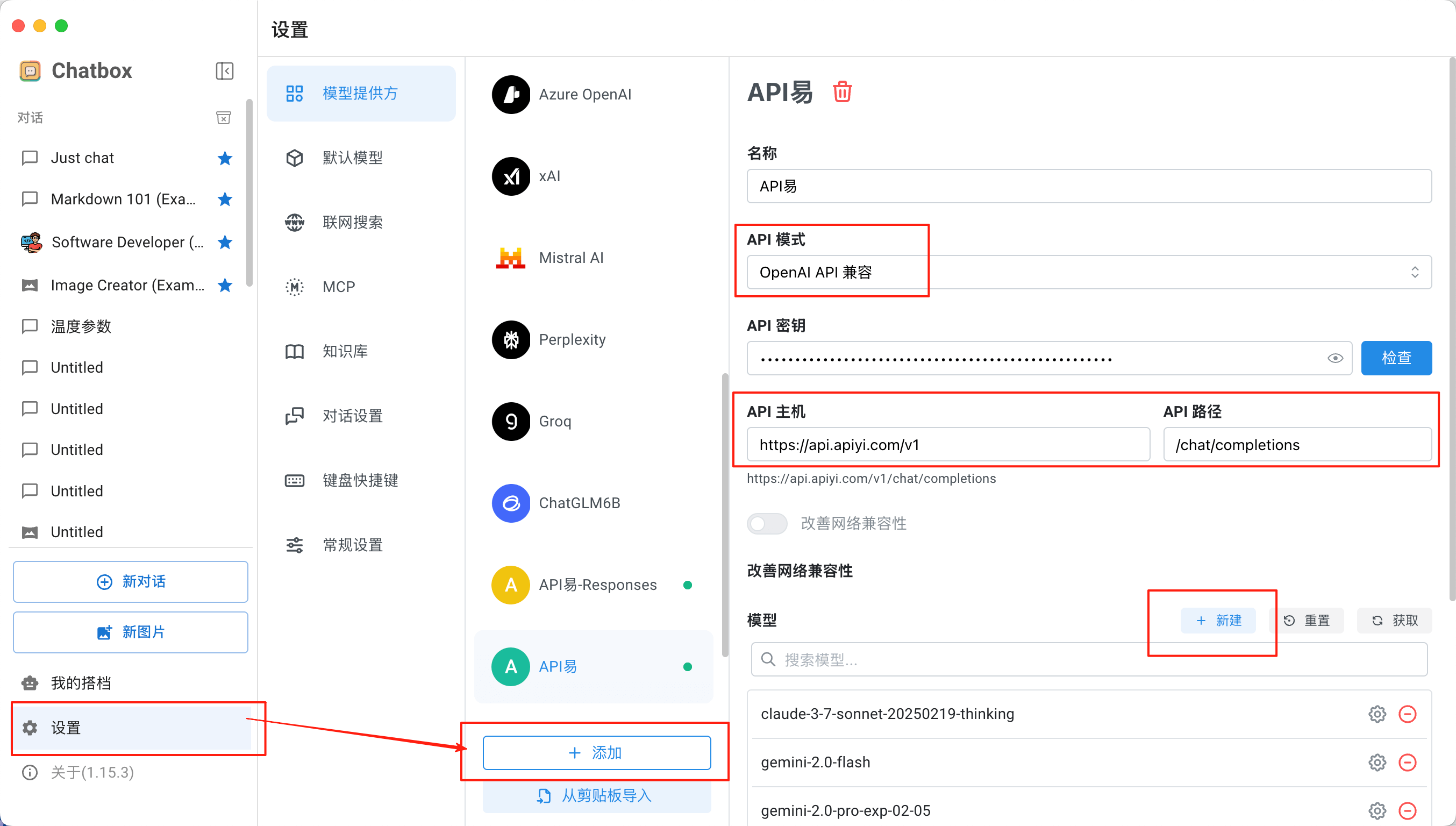 Following the configuration interface shown above, complete the following setup steps:
1. Click the **+ Add** button in the "Model Provider" section
2. Fill in the provider information:
* **Name**: APIYI (customizable name)
* **API Mode**: Select **OpenAI API Compatible**
* **API Key**: Enter your APIYI key
* **API Host**: `https://api.apiyi.com/v1`
* **API Path**: `/chat/completions` (default value)
3. **Advanced Configuration** (Optional):
* Enable "Improve Network Compatibility" option (as shown in the image)
* Can configure dedicated image generation endpoints
**Configuration Key Points**
* The API Host field corresponds to the Base URL and must include the `/v1` suffix
* The API Path field specifies the specific endpoint path
* API Key can be obtained from the [APIYI Console](https://api.apiyi.com)
* After configuration, click the **+ New** button in the lower right corner to add a model
#### Step 3: Select Model
After configuration is complete, you can select the following models in the chat interface:
## Supported Models
### Model Support
Chatbox AI supports various mainstream AI models through APIYI, including:
* **GPT Series**: GPT-5 series, GPT-4o, gpt-4.1, o3, etc.
* **Claude Series**: Claude 4 Sonnet, Claude 3.5 Haiku, etc.
* **Gemini Series**: Gemini 2.5 Pro, Gemini 2.5 Flash, etc.
* **Featured Models**: Reasoning, vision understanding, code generation specialized models
**View Complete Model List**
For detailed model information, pricing, and feature comparisons, please visit the [Model Information Page](https://docs.apiyi.com/en/api-capabilities/model-info)
## Core Features
### Multi-Platform Sync
Core advantages of Chatbox AI:
* **Local Storage**: Data completely stored locally, protecting privacy
* **Cross-Platform Access**: Switch between different devices
* **Offline Functionality**: Some features support offline use
### Conversation Management
**Intelligent Conversation Features**:
* Multi-turn conversation context retention
* Conversation history search and management
* Conversation export (Markdown, PDF)
* Prompt library and message references
### Document Processing
**Document Understanding Capabilities**:
* PDF, TXT, DOCX document upload
* Image understanding and analysis
* LaTeX and Markdown rendering
* Code highlighting and preview
### Image Generation
**AI Image Creation**:
* Supports DALL-E series model image generation
* Configurable dedicated image generation endpoints
* Supports various image sizes and styles
* Batch image generation functionality
**Configuring Image Generation**:
1. Add dedicated image generation provider in settings
2. Use standard `/images/generations` endpoint
3. Directly describe image requirements in chat
4. System automatically calls image generation API
### Advanced Settings
**Parameter Tuning**:
```yaml theme={null}
Conversation Parameter Settings:
- Temperature: 0.7 # Creativity control (reasoning models GPT-5 only use 1)
- Max Tokens: 4096 # Maximum output length
- Top P: 0.9 # Sampling parameter (reasoning models gpt-5 only use 1)
- Context Length: 8192 # Context length
```
## Usage Tips
### Prompt Optimization
Chatbox AI has a built-in prompt library, and you can also create custom prompts:
```markdown theme={null}
# Programming Assistant
You are an experienced software engineer, please help me:
- Write high-quality code
- Explain complex concepts
- Provide best practice recommendations
# Output Format
Please format code using code blocks and provide detailed comments.
```
### Privacy Protection
Chatbox AI adopts a "privacy by design" philosophy:
* Data stored locally, not uploaded to cloud
* Supports self-hosted API endpoints
* Can be used completely offline (with local models)
## Advanced Configuration
### Custom API Endpoints
In addition to basic chat functionality, you can also configure dedicated image generation endpoints:
#### Chat Completion Endpoint Configuration
```yaml theme={null}
Basic Chat Configuration:
Provider Name: APIYI
API Mode: OpenAI API Compatible
API Key: sk-your-apiyi-key
API Host: https://api.apiyi.com/v1
API Path: /chat/completions
```
#### Image Generation Endpoint Configuration
**Method 1: Use Dedicated Image API**
```yaml theme={null}
Image Generation Configuration:
Provider Name: APIYI-Image
API Mode: OpenAI API Compatible
API Key: sk-your-apiyi-key
API Host: https://api.apiyi.com/v1
API Path: /images/generations # Standard image generation endpoint
Applicable Models: gpt-image-1, flux-kontext-pro
```
**Method 2: Use Responses Endpoint**
```yaml theme={null}
Responses Configuration:
Provider Name: APIYI-Responses
API Mode: OpenAI API Compatible
API Key: sk-your-apiyi-key
API Host: https://api.apiyi.com
API Path: /v1/responses # General response endpoint
```
**Endpoint Selection Recommendations**
* Regular conversations: Use `/chat/completions` endpoint
* Reverse-engineered image generation models, like sora\_image: Use `/chat/completions` endpoint
* Image generation: Prioritize `/images/generations` standard endpoint
* Special needs: Can use `gpt-image-1` or `/v1/responses` endpoint
* In Chatbox, the "API Path" field corresponds to the specific endpoint path
### Network Proxy Settings
If you need to use a proxy for access:
1. Go to Settings > Network Configuration
2. Configure HTTP/HTTPS proxy
3. Set proxy authentication (if needed)
### Keyboard Shortcuts Settings
Common shortcuts:
* `Ctrl/Cmd + N`: New conversation
* `Ctrl/Cmd + T`: Switch model
* `Ctrl/Cmd + /`: Show command palette
* `Ctrl/Cmd + K`: Quick search
## Mobile Configuration
### iOS/Android Configuration
Mobile configuration is the same as desktop:
1. Download Chatbox AI mobile app
2. Go to Settings > Model Configuration
3. Add APIYI custom provider
4. Configure the same API Base URL and key
### Mobile-Specific Features
* **Voice Input**: Supports voice-to-text
* **Camera Integration**: Take photos directly for image analysis
* **Offline Cache**: Conversation history available offline
* **Push Notifications**: Important message alerts
## Troubleshooting
### Common Issues
**Connection Failed**
* Check API Base URL: `https://api.apiyi.com/v1`
* Verify API key validity
* Confirm network connection is normal
**Models Not Showing**
* Wait for model list to auto-refresh
* Manually click "Refresh Models" button
* Check API key permissions
**Slow Response**
* Try switching to a faster model
* Check network latency
* Reduce context length
### Log Debugging
Enable debug mode:
1. Settings > Advanced Options
2. Enable "Debug Mode"
3. View detailed log information
### Data Backup
Regularly backup conversation data:
1. Settings > Data Management
2. Export conversation history
3. Backup configuration files
## Best Practices
### Performance Optimization
1. **Choose Models Wisely**
* Simple tasks use gpt-4.1
* Complex tasks use o3, gpt-5 series
* Long texts use Claude 4, gemini-2.5-pro series
2. **Context Management**
* Regularly clean up unused conversations
* Set context length reasonably
* Use conversation grouping feature
3. **Resource Management**
* Monitor API usage
* Set usage quota reminders
* Update app version regularly
### Security Recommendations
* Don't share API keys
* Change keys regularly
* Protect app with strong passwords
* Handle sensitive information carefully
### Team Collaboration
Although Chatbox AI is primarily for individual users, team support is possible through:
* Share prompt templates
* Export and share conversation records
* Unify API configuration standards
## Comparison Advantages
### vs Other Clients
| Feature | Chatbox AI | ChatGPT Web | Other Clients |
| ---------------------- | ---------- | ----------- | --------------- |
| **Local Storage** | ✅ | ❌ | Partial support |
| **Multi-Platform** | ✅ | ❌ | Partial support |
| **Custom API** | ✅ | ❌ | ✅ |
| **Offline Features** | ✅ | ❌ | ❌ |
| **Privacy Protection** | ✅ | ❌ | Uncertain |
### Reasons to Choose Chatbox AI
1. **Privacy First**: Data completely stored locally
2. **Flexible Configuration**: Supports various API endpoints
3. **Cross-Platform**: Unified user experience
4. **Feature Rich**: Prompt library, document processing, etc.
5. **Continuous Updates**: Active development and maintenance
Need more help? Please check the [Chatbox AI Help Center](https://chatboxai.app/en/help-center) or visit [APIYI Official Website](https://api.apiyi.com).
Following the configuration interface shown above, complete the following setup steps:
1. Click the **+ Add** button in the "Model Provider" section
2. Fill in the provider information:
* **Name**: APIYI (customizable name)
* **API Mode**: Select **OpenAI API Compatible**
* **API Key**: Enter your APIYI key
* **API Host**: `https://api.apiyi.com/v1`
* **API Path**: `/chat/completions` (default value)
3. **Advanced Configuration** (Optional):
* Enable "Improve Network Compatibility" option (as shown in the image)
* Can configure dedicated image generation endpoints
**Configuration Key Points**
* The API Host field corresponds to the Base URL and must include the `/v1` suffix
* The API Path field specifies the specific endpoint path
* API Key can be obtained from the [APIYI Console](https://api.apiyi.com)
* After configuration, click the **+ New** button in the lower right corner to add a model
#### Step 3: Select Model
After configuration is complete, you can select the following models in the chat interface:
## Supported Models
### Model Support
Chatbox AI supports various mainstream AI models through APIYI, including:
* **GPT Series**: GPT-5 series, GPT-4o, gpt-4.1, o3, etc.
* **Claude Series**: Claude 4 Sonnet, Claude 3.5 Haiku, etc.
* **Gemini Series**: Gemini 2.5 Pro, Gemini 2.5 Flash, etc.
* **Featured Models**: Reasoning, vision understanding, code generation specialized models
**View Complete Model List**
For detailed model information, pricing, and feature comparisons, please visit the [Model Information Page](https://docs.apiyi.com/en/api-capabilities/model-info)
## Core Features
### Multi-Platform Sync
Core advantages of Chatbox AI:
* **Local Storage**: Data completely stored locally, protecting privacy
* **Cross-Platform Access**: Switch between different devices
* **Offline Functionality**: Some features support offline use
### Conversation Management
**Intelligent Conversation Features**:
* Multi-turn conversation context retention
* Conversation history search and management
* Conversation export (Markdown, PDF)
* Prompt library and message references
### Document Processing
**Document Understanding Capabilities**:
* PDF, TXT, DOCX document upload
* Image understanding and analysis
* LaTeX and Markdown rendering
* Code highlighting and preview
### Image Generation
**AI Image Creation**:
* Supports DALL-E series model image generation
* Configurable dedicated image generation endpoints
* Supports various image sizes and styles
* Batch image generation functionality
**Configuring Image Generation**:
1. Add dedicated image generation provider in settings
2. Use standard `/images/generations` endpoint
3. Directly describe image requirements in chat
4. System automatically calls image generation API
### Advanced Settings
**Parameter Tuning**:
```yaml theme={null}
Conversation Parameter Settings:
- Temperature: 0.7 # Creativity control (reasoning models GPT-5 only use 1)
- Max Tokens: 4096 # Maximum output length
- Top P: 0.9 # Sampling parameter (reasoning models gpt-5 only use 1)
- Context Length: 8192 # Context length
```
## Usage Tips
### Prompt Optimization
Chatbox AI has a built-in prompt library, and you can also create custom prompts:
```markdown theme={null}
# Programming Assistant
You are an experienced software engineer, please help me:
- Write high-quality code
- Explain complex concepts
- Provide best practice recommendations
# Output Format
Please format code using code blocks and provide detailed comments.
```
### Privacy Protection
Chatbox AI adopts a "privacy by design" philosophy:
* Data stored locally, not uploaded to cloud
* Supports self-hosted API endpoints
* Can be used completely offline (with local models)
## Advanced Configuration
### Custom API Endpoints
In addition to basic chat functionality, you can also configure dedicated image generation endpoints:
#### Chat Completion Endpoint Configuration
```yaml theme={null}
Basic Chat Configuration:
Provider Name: APIYI
API Mode: OpenAI API Compatible
API Key: sk-your-apiyi-key
API Host: https://api.apiyi.com/v1
API Path: /chat/completions
```
#### Image Generation Endpoint Configuration
**Method 1: Use Dedicated Image API**
```yaml theme={null}
Image Generation Configuration:
Provider Name: APIYI-Image
API Mode: OpenAI API Compatible
API Key: sk-your-apiyi-key
API Host: https://api.apiyi.com/v1
API Path: /images/generations # Standard image generation endpoint
Applicable Models: gpt-image-1, flux-kontext-pro
```
**Method 2: Use Responses Endpoint**
```yaml theme={null}
Responses Configuration:
Provider Name: APIYI-Responses
API Mode: OpenAI API Compatible
API Key: sk-your-apiyi-key
API Host: https://api.apiyi.com
API Path: /v1/responses # General response endpoint
```
**Endpoint Selection Recommendations**
* Regular conversations: Use `/chat/completions` endpoint
* Reverse-engineered image generation models, like sora\_image: Use `/chat/completions` endpoint
* Image generation: Prioritize `/images/generations` standard endpoint
* Special needs: Can use `gpt-image-1` or `/v1/responses` endpoint
* In Chatbox, the "API Path" field corresponds to the specific endpoint path
### Network Proxy Settings
If you need to use a proxy for access:
1. Go to Settings > Network Configuration
2. Configure HTTP/HTTPS proxy
3. Set proxy authentication (if needed)
### Keyboard Shortcuts Settings
Common shortcuts:
* `Ctrl/Cmd + N`: New conversation
* `Ctrl/Cmd + T`: Switch model
* `Ctrl/Cmd + /`: Show command palette
* `Ctrl/Cmd + K`: Quick search
## Mobile Configuration
### iOS/Android Configuration
Mobile configuration is the same as desktop:
1. Download Chatbox AI mobile app
2. Go to Settings > Model Configuration
3. Add APIYI custom provider
4. Configure the same API Base URL and key
### Mobile-Specific Features
* **Voice Input**: Supports voice-to-text
* **Camera Integration**: Take photos directly for image analysis
* **Offline Cache**: Conversation history available offline
* **Push Notifications**: Important message alerts
## Troubleshooting
### Common Issues
**Connection Failed**
* Check API Base URL: `https://api.apiyi.com/v1`
* Verify API key validity
* Confirm network connection is normal
**Models Not Showing**
* Wait for model list to auto-refresh
* Manually click "Refresh Models" button
* Check API key permissions
**Slow Response**
* Try switching to a faster model
* Check network latency
* Reduce context length
### Log Debugging
Enable debug mode:
1. Settings > Advanced Options
2. Enable "Debug Mode"
3. View detailed log information
### Data Backup
Regularly backup conversation data:
1. Settings > Data Management
2. Export conversation history
3. Backup configuration files
## Best Practices
### Performance Optimization
1. **Choose Models Wisely**
* Simple tasks use gpt-4.1
* Complex tasks use o3, gpt-5 series
* Long texts use Claude 4, gemini-2.5-pro series
2. **Context Management**
* Regularly clean up unused conversations
* Set context length reasonably
* Use conversation grouping feature
3. **Resource Management**
* Monitor API usage
* Set usage quota reminders
* Update app version regularly
### Security Recommendations
* Don't share API keys
* Change keys regularly
* Protect app with strong passwords
* Handle sensitive information carefully
### Team Collaboration
Although Chatbox AI is primarily for individual users, team support is possible through:
* Share prompt templates
* Export and share conversation records
* Unify API configuration standards
## Comparison Advantages
### vs Other Clients
| Feature | Chatbox AI | ChatGPT Web | Other Clients |
| ---------------------- | ---------- | ----------- | --------------- |
| **Local Storage** | ✅ | ❌ | Partial support |
| **Multi-Platform** | ✅ | ❌ | Partial support |
| **Custom API** | ✅ | ❌ | ✅ |
| **Offline Features** | ✅ | ❌ | ❌ |
| **Privacy Protection** | ✅ | ❌ | Uncertain |
### Reasons to Choose Chatbox AI
1. **Privacy First**: Data completely stored locally
2. **Flexible Configuration**: Supports various API endpoints
3. **Cross-Platform**: Unified user experience
4. **Feature Rich**: Prompt library, document processing, etc.
5. **Continuous Updates**: Active development and maintenance
Need more help? Please check the [Chatbox AI Help Center](https://chatboxai.app/en/help-center) or visit [APIYI Official Website](https://api.apiyi.com).