

Why an asset library
When generating character-consistent videos, Seedance 2.0 does not accept reference images containing human faces directly (anti-deepfake filtering). You must first ingest the image as a trusted asset, get anasset://xxx asset ID, and reference that ID in the video-generation request.
This service handles the ingest for you: just upload an image → get an asset ID → generate the video. There are two ways to use it, and the data is fully shared between them:
Method 1: Web UI (recommended for beginners)
Sign up and log in
Upload and ingest
- The asset group is optional; the system automatically uses your default group. Create a group first if you want to organize assets per character.
- Image requirements: jpeg / png / webp / bmp / tiff / gif / heic; aspect ratio 0.4–2.5; side length 300–6000px; under 30MB each.
Copy the asset ID
asset://xxx asset ID.Generate the video
asset:// IDs. The same actor in different styling reuses the same group, no re-verification needed.
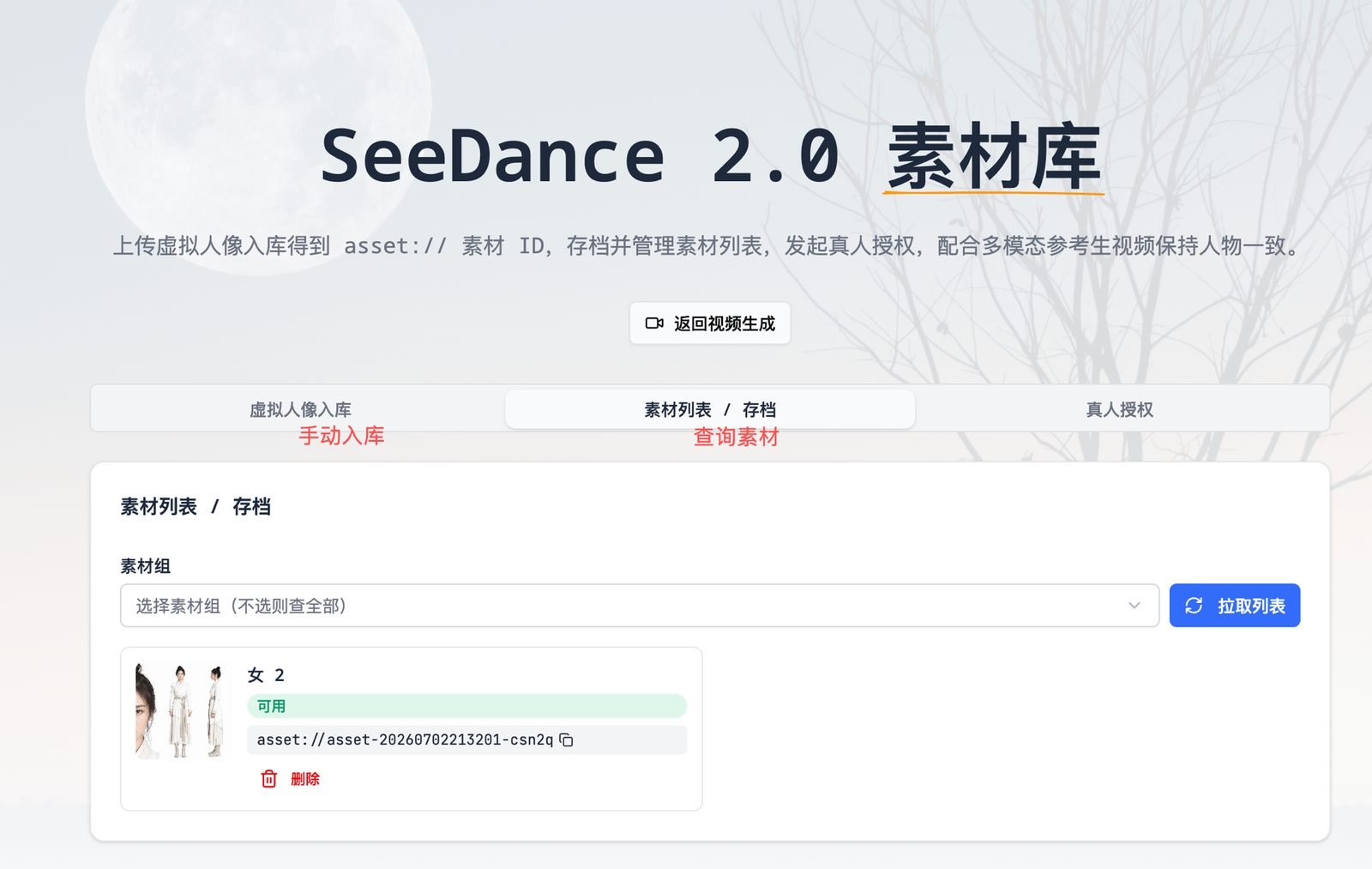
The asset library web UI: the ingest tab for manual uploads, the asset list / archive tab for browsing assets and copying asset:// IDs, and the real-person verification tab for verifying and uploading real-face assets
Method 2: API (developers)
Step 0: Create an Asset Library KEY
After logging in to icover.ai, go to Settings → Asset Library KEY (icover.ai/en/settings/apikeys) and create a KEY in the sk-... format.
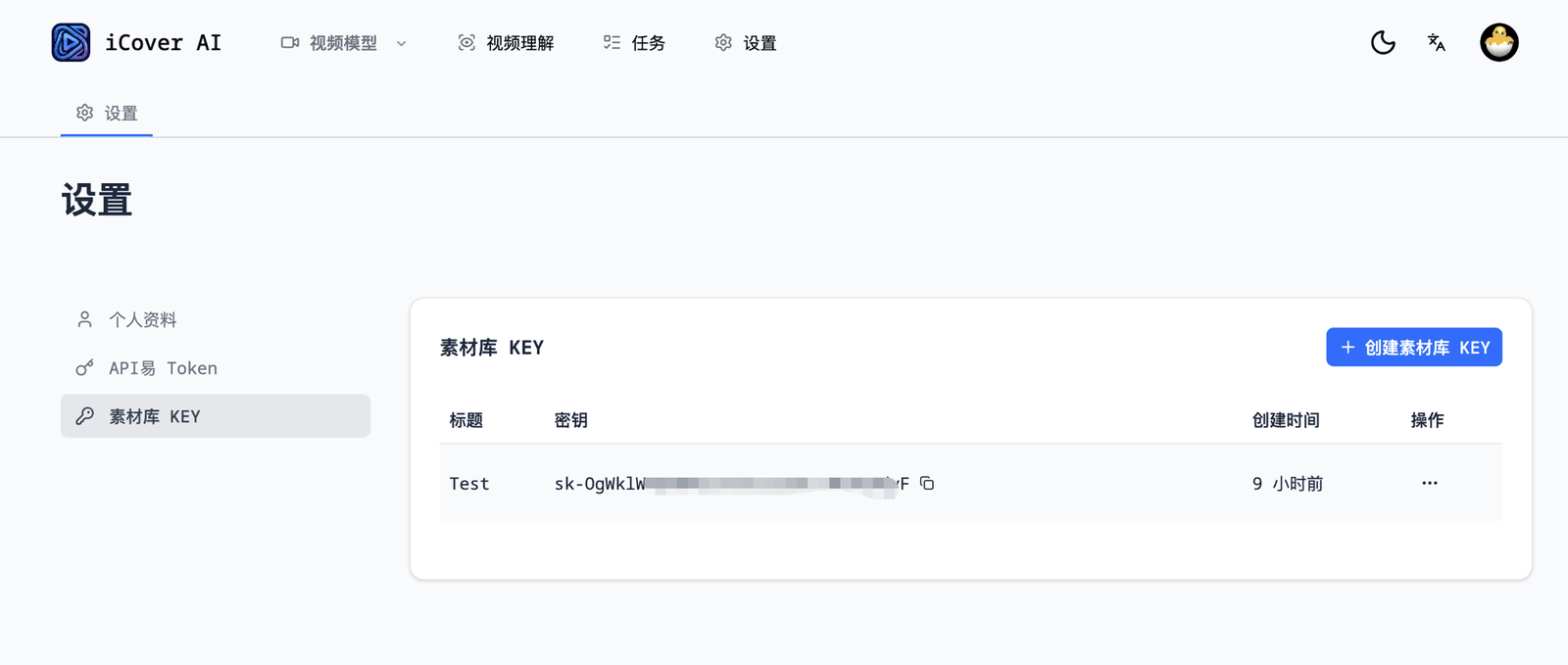
Settings → Asset Library KEY: click the create button and copy the generated sk-... key (note this is separate from the APIYI Token entry in the sidebar)
Step 1: Upload the file and get a public URL
The asset file (an image; real-person assets also support video / audio) must first be reachable via a public URL. Pick either route: A. You already have a public URL (your own CDN / file host) → skip to Step 2. B. Upload to our storage (two calls: request a presigned upload URL → PUT the file):Step 2: Ingest the asset
groupIdis optional: your default group is used / created automatically. To organize by character: firstPOST /api/asset-library/groups {"name":"actor-A"}to get a group ID, then include"groupId":"group-xxx"here.labelis optional; it helps you identify assets in the web UI.
Step 3: Poll until Active
Ingest is asynchronous (about 13 seconds per image, no SLA). Poll with the returned Id:Active as a timeout to investigate.
Step 4: Generate the video with the asset ID (via APIYI)
Write the asset ID asasset://<Id> and call APIYI with your own APIYI Seedance video token (not the asset library KEY):
Full endpoint reference
- Single-item endpoints (create group / ingest / get status / delete) pass through the raw Volcengine JSON verbatim, on both success and failure.
- List endpoints (
GETongroups/assets) are merged and filtered to your own assets, so they are not byte-for-byte upstream output: every original Volcengine field is preserved, plus a few of our own metadata fields prefixed with_(such as_library). Ignore unknown_-prefixed fields when parsing — adding more of them is not a breaking change. - Our own errors are plain text prefixed with
[client](400/401/403/404/502). records, the GET/PATCH/DELETE ofreal-person/sessions, and assetPATCHreturn{code, message, data}JSON (code 0 = success).
Real-face assets (fully automated API)
Real-person portraits require the person being filmed (the actor) to complete a one-time liveness verification, anchoring portrait-rights ownership at the source. The entire flow is now fully API-driven; the web UI’s “Real-Person Verification” tab is the same flow with an interface:Step 1: Start a verification session and get the H5 link
- Send the
H5Linkto the actor to open on their phone (or turn it into a QR code to scan). They log in to their personal Volcengine account and complete the liveness verification. Lighting / camera angle can cause a failed attempt — just retry. BytedTokenis the query credential; we store it with the session.GET /api/asset-library/real-person/sessionslists your sessions at any time (including id / status / h5Link).
Step 2: Query the result once the actor finishes
GroupId, the session status turns authorized and the real-person asset group is automatically archived to your account (it also shows up under the web UI’s asset groups). Note: a pending verification returns the same NotFound as an expired credential — the two cannot be distinguished. A link left unused for a long time may expire; just start a new session.
Step 3: Submit assets to the real-person group
Same ingest endpoint as virtual avatars — just pass the real-person group’sgroupId. Images, video, and audio are supported:
Active as usual and generate videos with asset://<Id> (Step 4 is unchanged).
Real-person asset rules and formats:
- One real-person group holds one person only; the same actor in different styling reuses the same group — no re-verification needed.
- Every upload goes through a face-consistency check (videos are sampled every second, and every sampled frame must pass). Side profiles, multiple people, or blurry material will fail — use clear frontal material.
- Images under 30MB; video mp4 / mov, 2–15 seconds, ≤50MB, aspect ratio 0.4–2.5; audio mp3 / wav, 2–15 seconds, ≤15MB.
Notes
- Image URL lifetime: the preview URLs returned by query / list endpoints are temporary addresses valid for about 12 hours — do not cache them long-term; the asset ID itself is permanent.
- Rate limits (Volcengine account level): status query 100 QPS, ingest and other operations about 10 QPS. Control concurrency and retry on failure.
- Web UI status sync: after ingesting via API, if the status has never been queried, the web archive may show “processing”; open the asset list page and click “Refresh List” to sync the real status.
volcengine.com/docs/82379/2333565, real-person asset onboarding volcengine.com/docs/82379/2315856.
FAQ
How is the asset library different from passing a reference image directly?
How is the asset library different from passing a reference image directly?
asset:// ID can be reused across any number of generation tasks, keeping the character’s face and clothing consistent across episodes and shots — ideal for serialized content such as animated drama, short drama, and IP characters. Real people can appear on camera too: just complete the real-person verification flow described above.Does the asset library cost extra? How is it different from enabling it officially myself?
Does the asset library cost extra? How is it different from enabling it officially myself?
Does the asset library follow the account or the KEY? How is asset isolation implemented?
Does the asset library follow the account or the KEY? How is asset isolation implemented?
asset:// ID leaks, other callers on the same channel can reference it in generation requests. Treat asset IDs as secrets.Are assets stored on APIYI / icover.ai's own servers?
Are assets stored on APIYI / icover.ai's own servers?
- You supply a public URL (your own CDN / image host): the original file never passes through us — we only forward that URL to Volcengine.
- You upload via
/api/storage/presign: the file is first stored in our object storage (cdn.icover.ai) to obtain a public URL, which is then forwarded to Volcengine. That original file stays in our storage.
asset:// ID. Our own database only keeps that ID and its account ownership (used for the per-account isolation described above); we do not record the asset content itself.Real-face assets carry an extra hard requirement: the person being photographed must complete live face verification in person (signing into their own Volcengine account to do face recognition), which locks down portrait-rights ownership at the source — no one else can complete this verification on their behalf. See “Real-face assets” above for the full flow.Is this the full-capability SeeDance 2.0?
Is this the full-capability SeeDance 2.0?
doubao-seedance-2-5-260628 and doubao-seedance-2-0-260128 — model parameters, resolutions, and durations are identical to the official offering, with nothing cut down. See the Seedance 2.0 / 2.5 Overview for model details and pricing.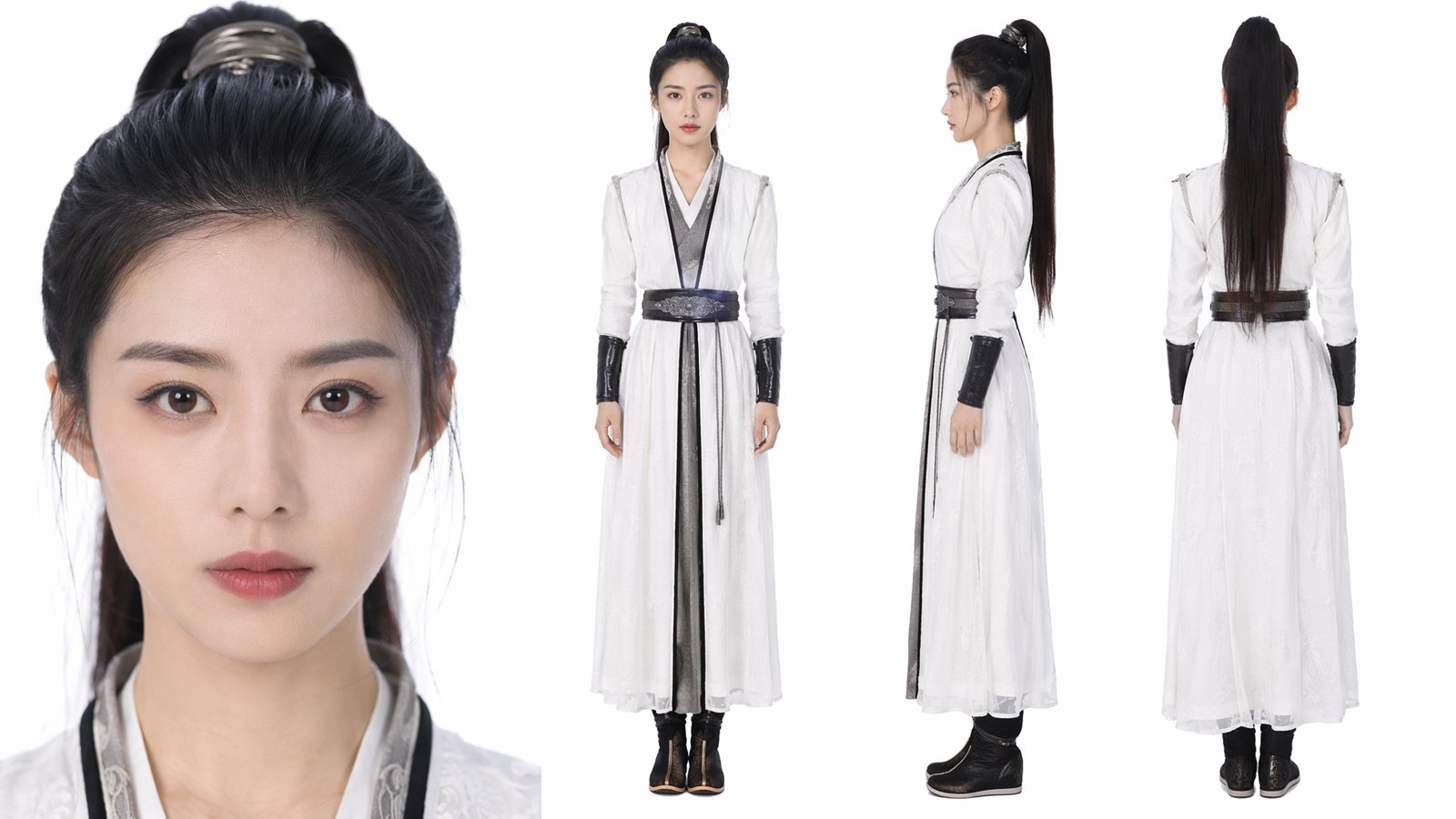
Virtual-avatar example: an AI-generated photorealistic portrait with no real-world counterpart. Put the frontal face close-up plus full-body front / side / back views into one asset group for the best character consistency
Do lifelike digital humans (virtual avatars) require review?
Do lifelike digital humans (virtual avatars) require review?
asset:// ID is immediately usable for video generation. Only real-face assets require the person being filmed to complete liveness verification (see the real-face section above).Can assets already ingested / verified with another provider be migrated over?
Can assets already ingested / verified with another provider be migrated over?
asset:// ID obtained through another provider belongs to that provider’s Volcengine account, and referencing it through the APIYI channel returns asset not found. Assets must be re-ingested with this service.- Virtual-avatar assets: these can be migrated programmatically in bulk — write a script that re-uploads the original images through the API on this page, then update the old IDs in your system to the new
asset://IDs. We recommend keeping an asset-ID mapping layer in your own system: your business data stores only your internal IDs, so switching providers later only means updating the mapping. - Real-person verified assets: real-person verification is also account-bound and cannot be migrated — re-verification is required: the person being filmed must complete liveness verification again (see the real-face section above).
- Advice for consumer-facing products: with a large stock of existing assets, migrate virtual assets silently via a backend job — users won’t notice; for the real-person verified portion, prompt users to re-verify on the occasion of a system upgrade or new version release, which feels much more natural.