

New accounts come with $0.05 in trial credit, so you can make the first call below without topping up. A lightweight model such as
gpt-5.4-mini is more than enough to confirm your integration works.Two paths, pick one
Let an AI do it
Copy one prompt into Codex, Claude Code or Cursor. It reads the docs, writes the code and runs it. Best if you already work with a coding agent.
Do it yourself
Register, create a key, make your first call. Three steps, five minutes. Best if you want to understand each piece.
Both paths start the same way: you register the account and create the key yourself. What an AI can take over is everything after that — picking a model, getting the base URL right, writing the example, and debugging it.
Let an AI do it
Send your agent this prompt
Let a coding agent integrate APIYI on its own. Copy and paste into Codex, Claude Code, Cursor and similar tools.
What it will do
1
Install the skill, or read skill.md directly
https://docs.apiyi.com/skill.md is an integration reference written for machines: endpoints, authentication, the model-naming rule, known pitfalls and a verification checklist. Reading it gives an agent everything it needs to integrate APIYI.2
Look up pages as needed
llms.txt is the index of every page on this site. The agent picks the relevant ones and appends .md to read them as plain text.3
Write code and actually run it
It writes the example in your project’s existing language and dependencies rather than copying the Python from the docs. It is not done until the call succeeds.
Five entry points you can feed to an AI
The skill, the CLI and the contract-plus-registry path for coding agents are all described in the AI Developer Kit.
Send any page straight to an AI
Every documentation page has a Copy page button in the top right. Opening the arrow next to it reveals more options: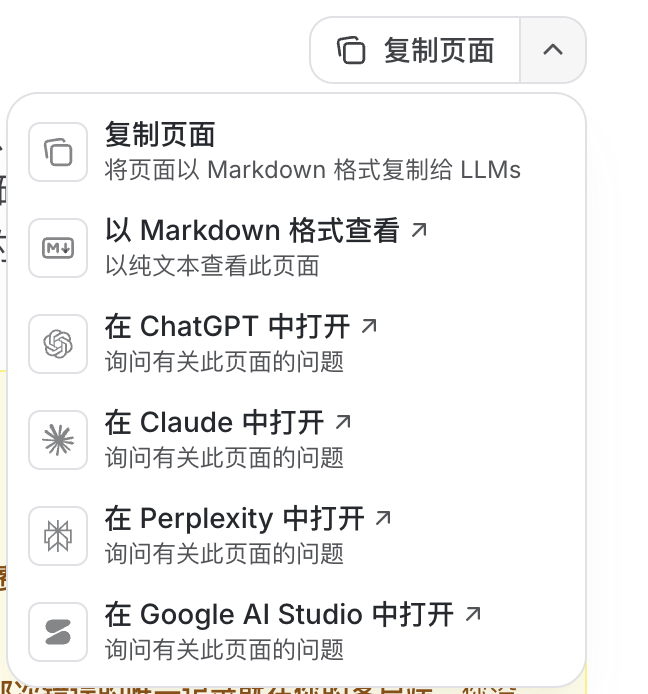
When you hit a problem with a specific model, the fastest route is to open that model’s page, hit Copy page, and send it to an AI along with your error.
Do it yourself
Step 1: Register and get a key
1
Create an account
Go to the APIYI website, register with email and verify it (a university or corporate address is recommended), then sign in to the console.
2
Create an API key
Open the token page:
- You can copy the default token and use it directly (copy icon on the right)
- Or click New in the top right to create one, name it (for example
test-key), and confirm
sk-. See How to create a key for details.3
Top up when you need more
Once the $0.05 trial credit runs out, top up from the console. Minimum amounts and settlement rules differ by payment channel — see Payment Methods — and bonus policy is covered in Recharge Promotions.
Step 2: Get the connection details right
Choose the base URL by SDK, not by model. This is the most common integration mistake:Step 3: Make your first call
- Python
- Node.js
- Java
Next steps
Connect Claude Code
Set
ANTHROPIC_BASE_URL and drive Claude Code through APIYIConnect Codex
One
config.toml covers the desktop app, the IDE plugin and the CLIExplore the model list
Every supported model and a capability cheat sheet
Read the API manual
Full endpoint reference, error codes and debugging
FAQ
How do I switch models?
Just change themodel parameter in your request:
Which programming languages are supported?
APIYI is compatible with OpenAI API standards and supports all languages that OpenAI SDKs support:- Python
- JavaScript/TypeScript
- Java
- C#/.NET
- Go
- Ruby
- PHP
- And more…
How do I check my balance?
Sign in to the console to view:- Account balance
- Usage history
- Consumption statistics
- Balance Query API: Get account balance, expiry date, and more via API
- Balance Alert Setup: Auto-notify on low balance to avoid service interruption
What if I run into a problem?
- Open the page that is giving you trouble, hit Copy page in the top right, and send it to an AI together with your error
- Check the API manual
- Review common errors
- Contact support: support@apiyi.com
Tip: Save your API key securely and regularly check usage logs in the console. Every request has message history for cost optimization.
Happy using!