

Short answer
Pick your local timezone
Asia/Shanghai (UTC+8); everyone else picks their local timezone. Once set, every time you see is your local timeAccept the suggestion dialog
One basis everywhere
Historical data offset
Before this fix, the database default timezone was UTC+8. Combined with the user-selected Shanghai timezone (UTC+8), this produced an offset in the chart data. The database default timezone has now been adjusted to UTC+0, so the chart follows the user-selected timezone with no further offset. What is affected: charts and Billing Summary grouped by day / hour before 2026/9/20 00:55 (UTC+8) may have an 8-hour date offset. The total amount is not affected, and per-call detail records are not affected. For day-level reconciliation, re-export once. If you need to reconcile historical data, you can also pull per-call records through the Log Query API and aggregate them yourself; this is more reliable than relying on pre-fix summary files.Where to check and change your account timezone
The account timezone is shown and edited in the 用户信息 (User Info) section of the console. New accounts default toUTC; users in China should switch to Asia/Shanghai.
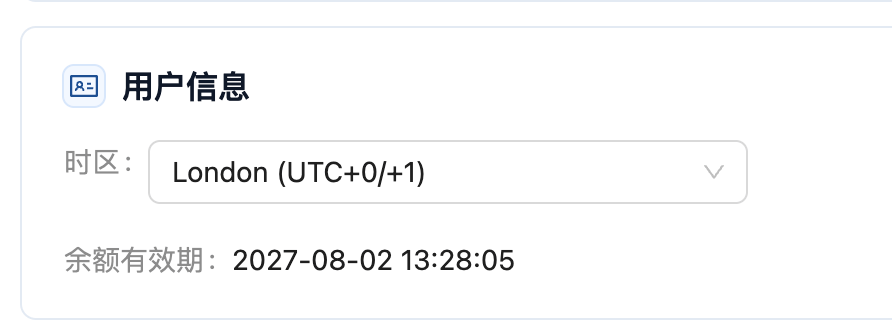
The timezone setting in the console's User Info section — change it from the dropdown
Accept the switch when the suggestion dialog appears
When your account timezone (for exampleUTC) differs from your current device timezone (for example Asia/Shanghai), the console opens a “本地设置建议” (Local Settings Suggestion) dialog. Just click the switch button on the right. The detail list and the chart then show Beijing time.
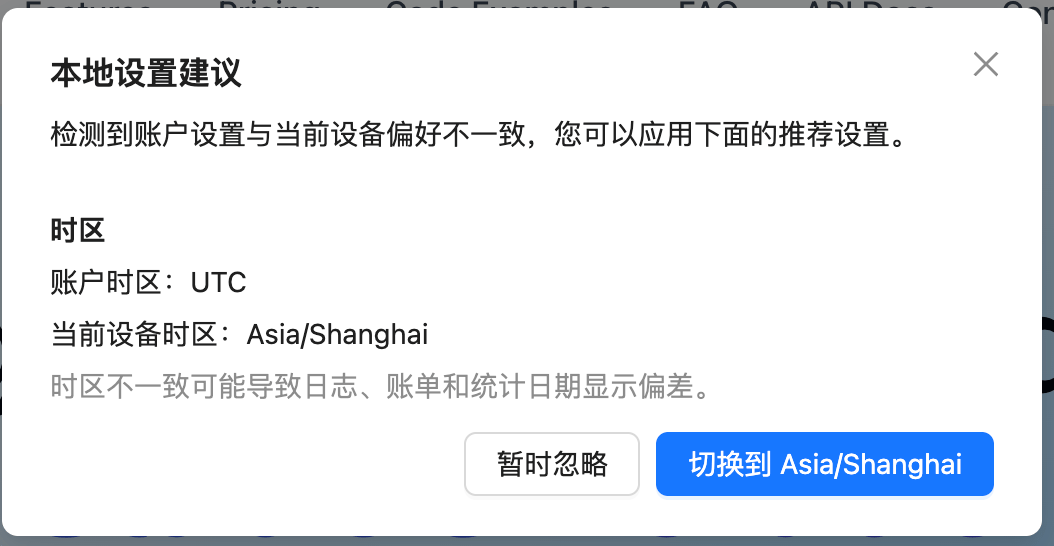
The Local Settings Suggestion dialog — you can click the switch button directly
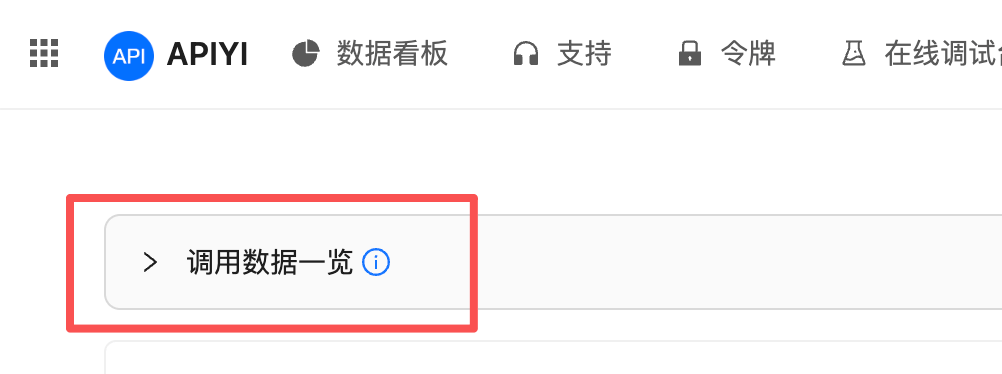
The Call Data Overview at the top of the Logs page, bucketed by day in the account timezone
Which export should you use?
The Logs page has two buttons in the top-right corner, 导出 (Export) and 汇总账单 (Billing Summary).
The Export and Billing Summary buttons in the top-right corner of the Logs page
Asia/Shanghai, a call made at 2026-09-20 01:08 (UTC+8):
- shows as
2026-09-20 01:08in the page detail list - shows as
2026/9/20 1:08in the export file as well - falls under
2026-09-20in the Billing Summary (daily) and on September 20 in the chart
Export → background async export (recommended)
When you need line-by-line spend records, use the 导出 (Export) button and pick 后台异步导出 (background async export) in the dialog.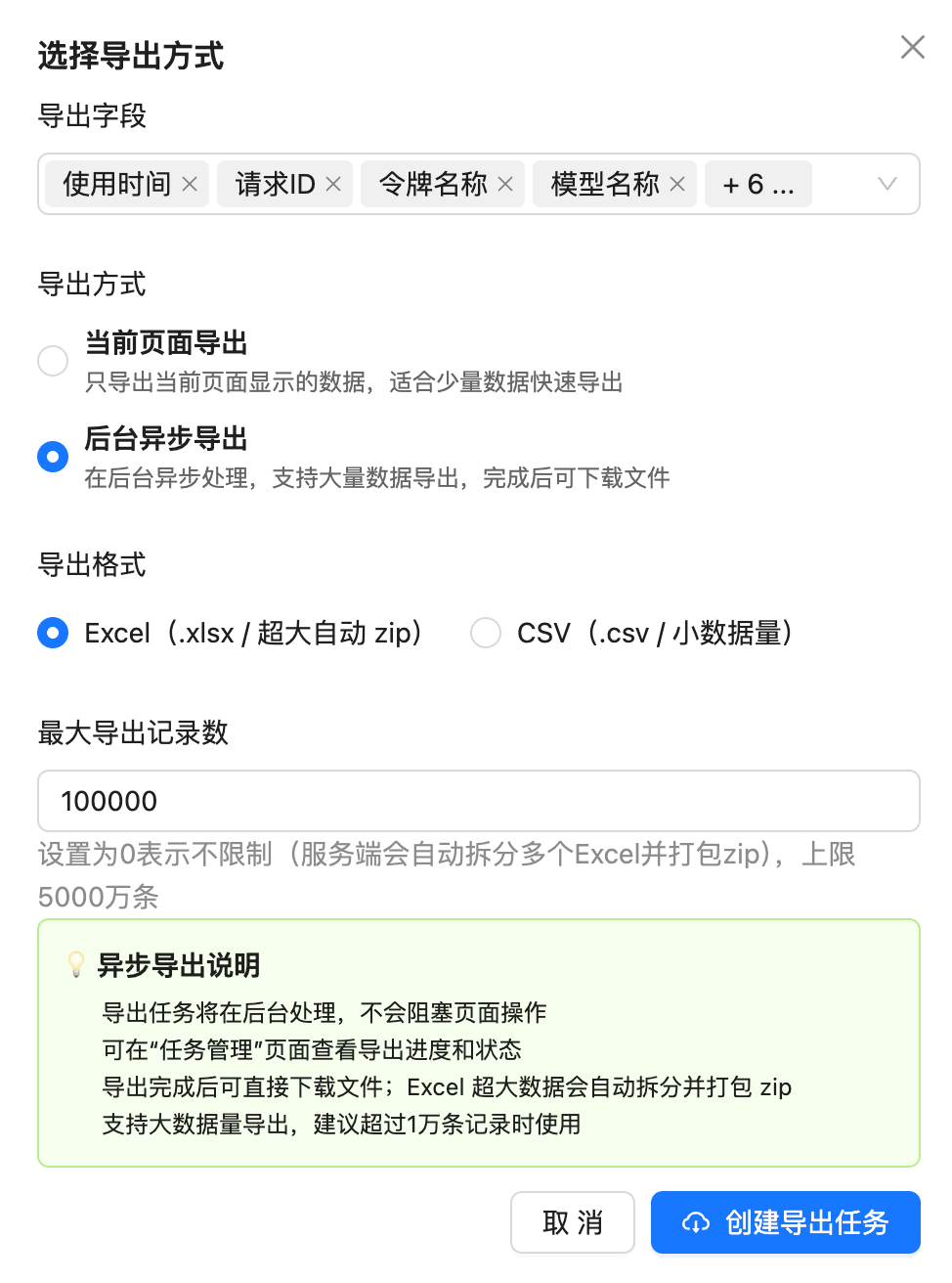
The export dialog — select background async export for large volumes
- Times are written in the account timezone, matching the page detail list
- Selectable fields: usage time, request ID, token name, model name and more — pick what your reconciliation needs
- Export mode: for large volumes choose background async export; the job runs in the background without blocking the page, and it is recommended above 10,000 records
- Format: Excel (
.xlsx, very large exports are split and zipped automatically) or CSV (.csv, for small volumes) - Maximum record count:
0means unlimited (the server splits into multiple Excel files and zips them), with a ceiling of 50 million records - Progress: once the job is created, track its progress and status on the 任务管理 (Task Management) page, then download the file
Reconciliation in practice
Make sure both sides use the same timezone
Asia/Shanghai); otherwise calls made around midnight land on different dates.Convert API timestamps yourself
created_at from the Log Query API is a Unix second timestamp; convert it to whatever timezone you need. For Beijing time, add 28800 (8 × 3600) and format as UTC, or use your language’s timezone library.Include the request ID and timezone when reporting an issue
01:08 (UTC+8).Common questions
The docs used to say stay on UTC+0 and dismiss the dialog — is that still needed?
The docs used to say stay on UTC+0 and dismiss the dialog — is that still needed?
I kept UTC as advised — should I switch to Beijing time?
I kept UTC as advised — should I switch to Beijing time?
Asia/Shanghai so that every time in the console is Beijing time and you no longer add 8 hours by hand. If your reconciliation process is fixed on UTC, staying on UTC is fine too — both display correctly now.Will switching the timezone lose any data?
Will switching the timezone lose any data?
Are files exported before the fix still accurate?
Are files exported before the fix still accurate?
Why don't the times on my page match a colleague's export?
Why don't the times on my page match a colleague's export?
Can the Log Query API take a timezone parameter?
Can the Log Query API take a timezone parameter?
Do the exported files contain my inputs and outputs?
Do the exported files contain my inputs and outputs?
Can I pull logs programmatically instead of exporting from the page?
Can I pull logs programmatically instead of exporting from the page?
start_timestamp, end_timestamp and created_at are all Unix second timestamps, independent of the console timezone setting — a good fit for automated reconciliation.My export job never finishes — what should I do?
My export job never finishes — what should I do?