

Quick Integration (OpenAI Compatible Format)
This is the most universal integration method, supporting all 400+ models on APIYI.1. Get API Key
Please refer to the API Key Management Tutorial to get your API key.2. Configuration Steps
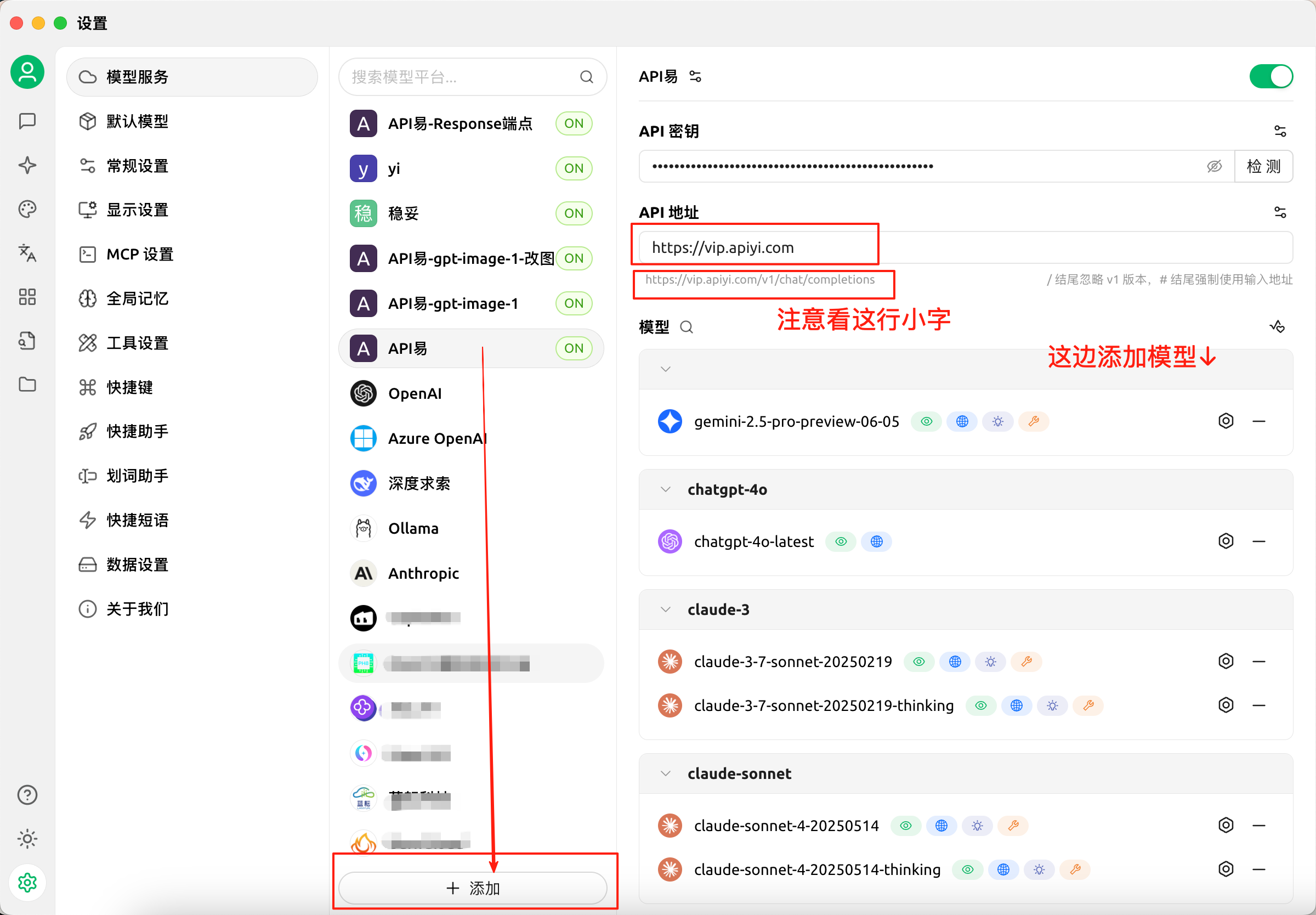
- Open Cherry Studio application
- Click the settings icon on the left to enter the settings page
- Select “Model Service” option
- Create a custom channel [APIYI] in the model provider list
- Fill in configuration information:
- API Address:
https://api.apiyi.com - API Key: Enter your APIYI key (how to get)
- API Address:
- Click the ”➕ Add” button at the bottom to save the configuration
Configuration Key Points
- API address must use:
https://api.apiyi.com - For API key setup, see the API Key Management Tutorial
- It’s recommended to test the connection first to ensure correct configuration
Three Channel Types Comparison
Cherry Studio supports multiple channel types, all accessible through APIYI. Choose the best method for your use case:Anthropic Channel Type
The Anthropic native format supports Prompt Caching. During continuous conversations within 5 minutes, cached input tokens cost only about 10% of the normal price, significantly reducing usage costs.Configuration Steps
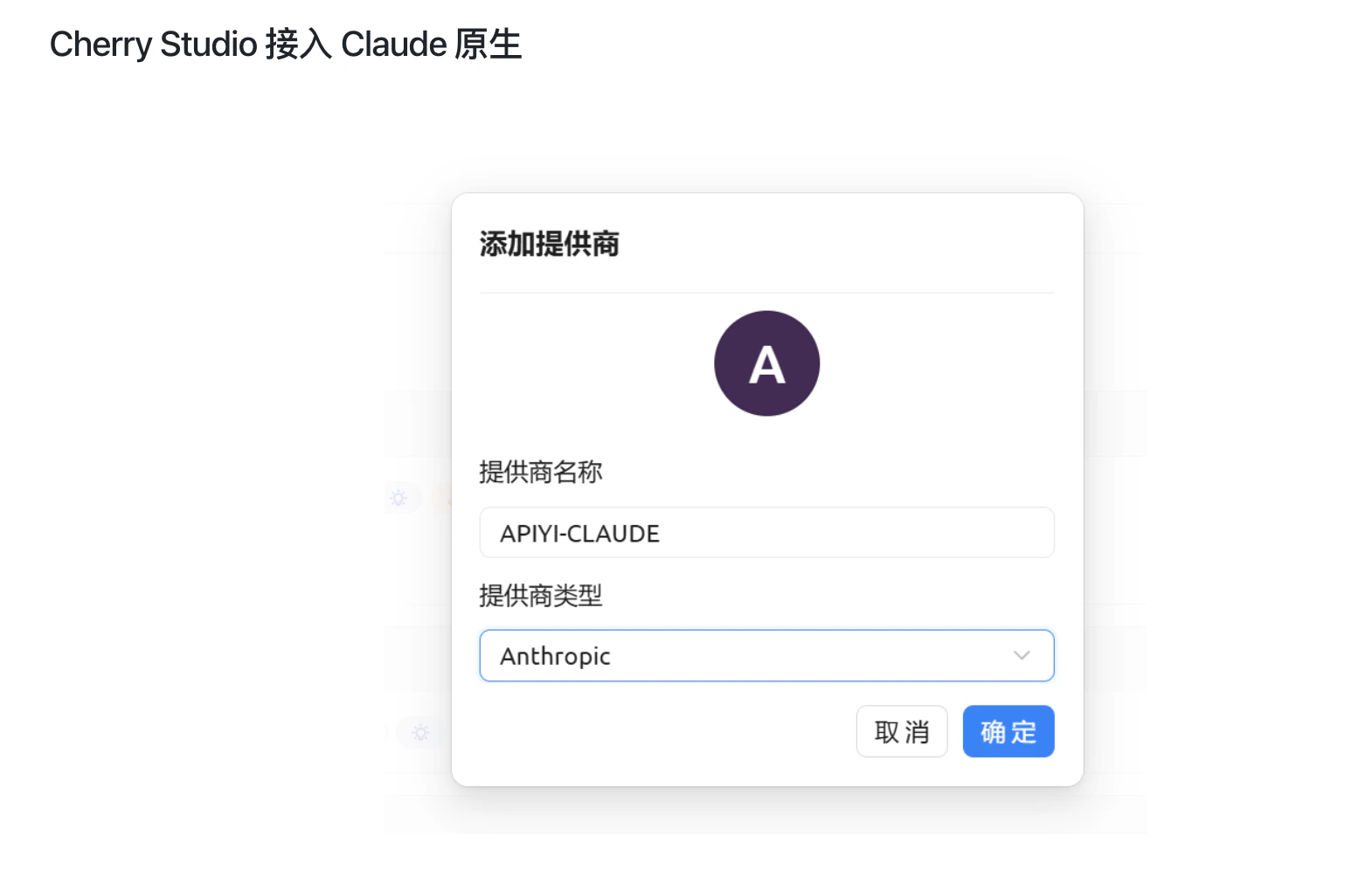
- Open Cherry Studio Settings → Model Service
- Click the ”➕ Add” button at the bottom, then fill in the dialog:
- Provider Name: Custom name (e.g.,
APIYI-CLAUDEfor easy identification) - Provider Type: Select Anthropic
- Provider Name: Custom name (e.g.,
- After clicking “OK” to create, fill in the configuration in the new channel:
- API Address:
https://api.apiyi.com - API Key: Enter your APIYI key
- API Address:
- Add desired Claude models (e.g.,
claude-sonnet-4-5-20250929,claude-opus-4-5-20251101)
When to Use
- Continuous conversations: Frequent chats within 5 minutes have high cache hit rates, saving significant costs
- Long context conversations: The longer the context, the more you save with caching
- Occasional chats: If you only chat sporadically, the OpenAI compatible format works just as well
Claude API Documentation
View the complete Anthropic native format API documentation, including streaming, extended thinking, and other advanced features.
Prompt Caching Deep Dive
Learn how Prompt Cache cuts your bill to 10%, with trigger conditions, minimal examples, and common pitfalls.
Gemini Channel Type
The Gemini native format supports all Gemini-exclusive features, including text-to-image generation withgemini-3-pro-image, code execution, native reasoning control, and more.
Configuration Steps
- Open Cherry Studio Settings → Model Service
- Create a new channel, select Google Gemini as the channel type
- Fill in configuration:
- API Address:
https://api.apiyi.com - API Key: Enter your APIYI key
- API Address:
- Add desired Gemini models (e.g.,
gemini-2.5-flash,gemini-3-pro-preview,gemini-3-pro-image)
Special Features
- Text-to-Image: Use the
gemini-3-pro-imagemodel to generate images directly in conversations - Code Execution: Models can automatically execute Python code for data analysis
- Reasoning Control: Fine-tune reasoning depth via
thinking_budget - Multimodal Support: Full support for images, audio, video, and other media inputs
Gemini Native Format Documentation
View the complete Gemini native format API documentation, including multimodal processing, reasoning control, code execution, and more.
Adding Models
After configuring channels, add the models you need in the corresponding channel:- Search for models in the model search box
- Click the icon next to the model name to select or configure it
- Enable or disable different model variants as needed
View Latest Model Recommendations
View the latest model recommendations, performance comparisons, and usage suggestions. Models are continuously updated to ensure you use the latest and most powerful AI models.
Why not list specific models here?AI models are updated very frequently. To ensure you get the most accurate model recommendations, we maintain the latest model list, performance data, and usage suggestions on the Model Recommendations page.
Advanced Features
Image Support
If using models that support images (like GPT-4V):- Enable “Image” option in settings
- Select models that support vision
- Upload images in conversation
Streaming Output
Cherry Studio supports streaming output by default, providing a better experience.Troubleshooting
Connection Failed
- Check if API key is correct
- Confirm API address:
https://api.apiyi.com - Verify network connection status
Model Unavailable
- Confirm account balance is sufficient
- Check if the model is in the correct channel type (e.g., Claude models need to be in OpenAI or Anthropic channel)
- Try other models
Usage Tips
- Choose Channels Wisely: Select the appropriate channel type based on your primary models — you can configure multiple channels simultaneously
- Choose Models Wisely: Select appropriate models based on task requirements
- Regular Updates: Follow new model releases
- Monitor Usage: View usage through APIYI