

Quick Configuration
1. Open Settings
Click the gear icon ⚙️ in the upper right corner, select Models option2. Configure API
- OpenAI API Key: Enter your APIYI key (can use default token directly)
- Override OpenAI Base URL: Check and enter
https://api.apiyi.com/v1 - Click Verify to validate configuration
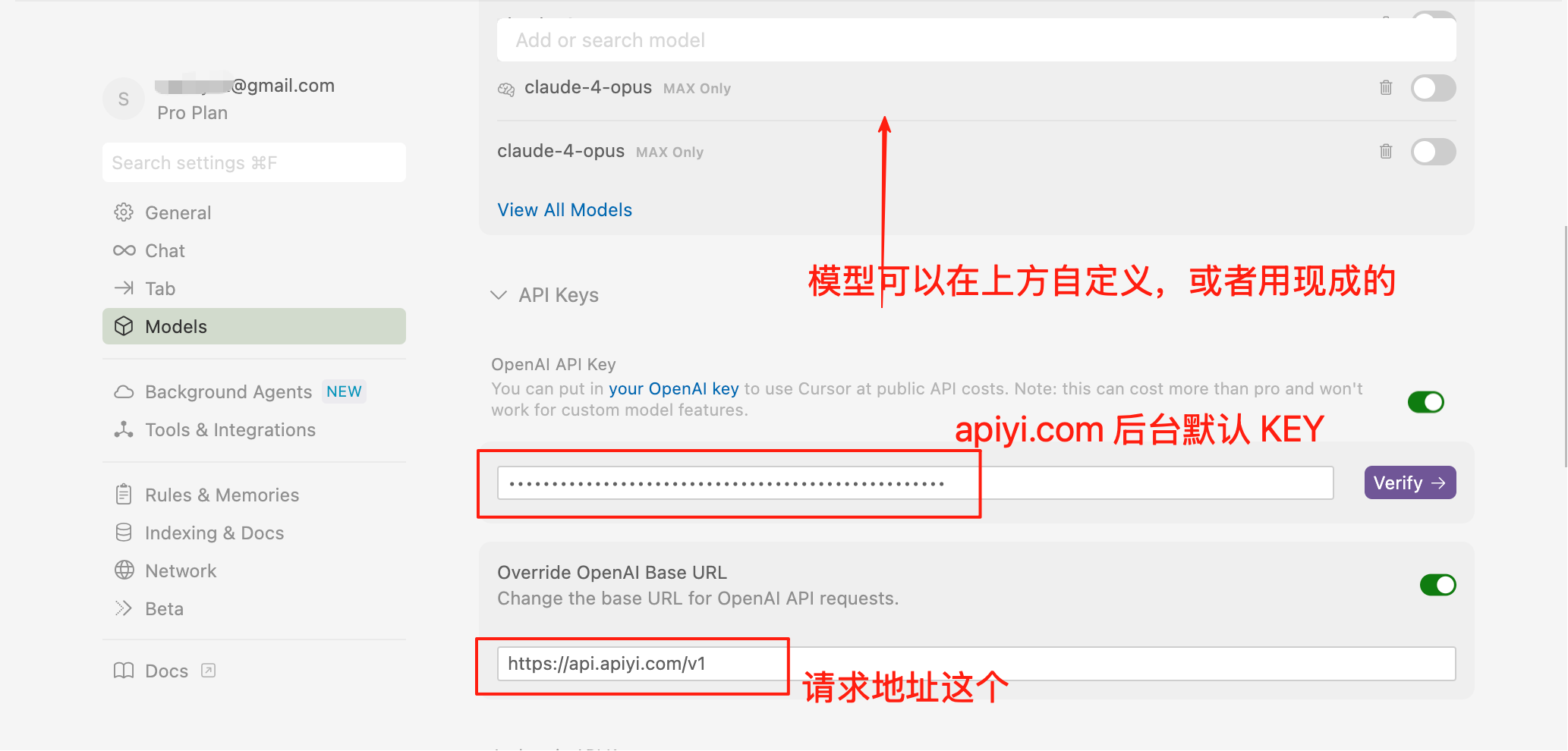
3. Model Configuration
Recommended Model Configuration
Based on current latest model performance and cost-effectiveness, recommend the following: Programming First Choice Models:claude-sonnet-4-20250514- Claude 4 Sonnet, strongest programminggpt-4.1- Fast speed, strong overall capabilitydeepseek-v3- Excellent Chinese programming, high cost-performance
gpt-4.1-mini- Lightweight but capableclaude-3-haiku- Cheapest in Claude seriesgemini-2.5-flash- Google’s fast response model
o4-mini- First choice reasoning model for programming taskso3- Complex reasoning and algorithmic problems
Add Custom Models
Add the following model IDs in Cursor settings:Usage Mode Explanation
Chat Mode Workflow
Since Cursor doesn’t support Agent mode, recommend the following workflow:-
Dialogue to Generate Code
- Use
Ctrl/Cmd + Lto open chat - Describe your requirements, have AI generate code
- View generated code snippets
- Use
-
Manually Apply Code
- Copy code from chat window
- Paste to target file
- Or use “Apply” button (if available)
-
Iterate and Optimize
- Continue conversation to request modifications
- Repeat application process
Alternative Comparison
Core Features
Smart Code Completion
- Tab Completion: Press Tab to accept AI suggestions
- Multi-line Completion: Supports function-level code generation
- Context Aware: Provides suggestions based on project structure
AI Conversation
- Ctrl/Cmd + K: Open command palette
- Ctrl/Cmd + L: Sidebar conversation
- Code Explanation: Select code and ask AI
Code Editing
- Generate Code: Describe requirements, AI auto-generates
- Refactoring Suggestions: Get optimization recommendations
- Error Fixing: AI assists in locating and fixing errors
Keyboard Shortcuts
Usage Tips
1. Provide Clear Context
2. Optimize Prompts
3. Fully Utilize Chat Mode
Although there’s no Agent mode, you can:- Have AI generate complete file content
- Request AI to provide detailed modification instructions
- Use AI for code review and refactoring suggestions
Troubleshooting
Connection Timeout
- Check network connection
- Confirm API address:
https://api.apiyi.com/v1 - Verify API key validity
Model Not Responding
- Check account balance
- Try switching models
- Restart Cursor
Poor Code Suggestions
- Provide more project context
- Use more specific prompts
- Try different models
Best Practices
Project-Level Configuration
Create.cursor-settings.json in project root:
Code Standards
Clearly specify code standards in prompts:- Use TypeScript
- Follow Airbnb standards
- Add JSDoc comments
- Use functional style
Security Awareness
- Don’t include sensitive information in code
- Review AI-generated code
- Verify third-party dependency security
Integration Workflow
Git Integration
Test-Driven Development
- Write test cases first
- Have AI generate implementation code
- Run tests to verify
- Iterate and optimize
Code Review
Use AI for code review:Need Agent Mode?
If you need AI to automatically modify multiple files and perform complex refactoring tasks, recommend checking out:Cline
Full-featured AI Agent in VS Code, supports auto-modifying files
RooCode
Emerging VS Code AI Agent plugin, supports multi-file editing
Tip: If you’re a Vibe Coding enthusiast and need AI to autonomously complete complex programming tasks, recommend using tools that support Agent mode, or consider purchasing Cursor official membership for full experience.