

Overview
Roo Code is a powerful VS Code AI programming assistant that provides you with a complete AI development team. Its standout feature is multi-mode configuration, allowing you to use different AI models for different development tasks to achieve optimal development efficiency.Core Advantages
- 🎯 Multi-Mode Configuration: Assign specialized models for architecture, coding, debugging, and other tasks
- 🤖 Agent Intelligence: Automatically plan and execute complex development tasks
- 🔄 Multi-File Operations: Understand project structure and intelligently modify multiple files
- 💰 Completely Free: Open source and free, only pay for AI model usage
- 🌐 Wide Compatibility: Supports 400+ mainstream AI models
- 🔌 MCP Support: Connect external tools via Model Context Protocol
Roo Code vs ClineRoo Code is a fork of Cline, retaining Cline’s core functionality while adding a unique multi-mode configuration system. If you need to use different models for different development stages, Roo Code is the better choice.
Maintenance Status and Responses Endpoint Support
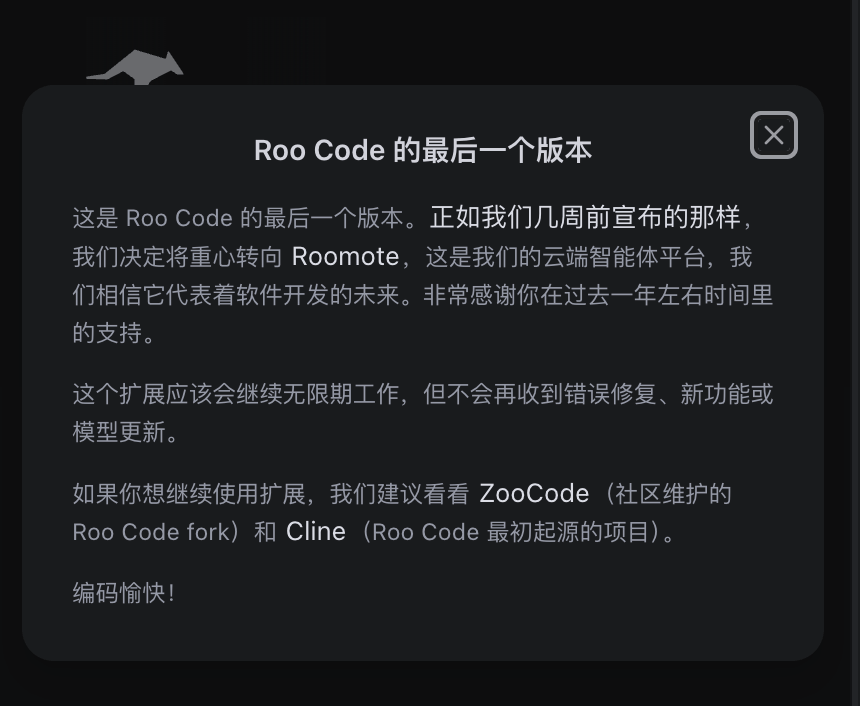
Officially discontinued (2026)
The Roo Code team has shipped its final release and announced a pivot to Roomote, its cloud agent platform: the extension will keep working indefinitely, but there will be no more bug fixes, new features, or model updates. The team recommends the community-maintained forkZooCode, or Cline — the project Roo Code originally forked from — for anyone who wants to stay on the extension form factor.
One of the few IDE plugins that speak /v1/responses (verified)
Roo Code’s “OpenAI” provider uses the/v1/responses endpoint (distinct from the “OpenAI Compatible” provider, which uses /v1/chat/completions) and accepts a custom Base URL. That makes it one of the few plugins that can run GPT-5.4 “reasoning plus tool calling” inside an IDE — on chat/completions, OpenAI blocks tools and reasoning together for GPT-5.4 and later (see the Responses API Native Guide), while responses has no such limit.
Setup: pick OpenAI as the API Provider (not OpenAI Compatible), set the Base URL to https://api.apiyi.com/v1, and choose gpt-5.4 as the model.
Installing inside Trae and other VS Code-family IDEs
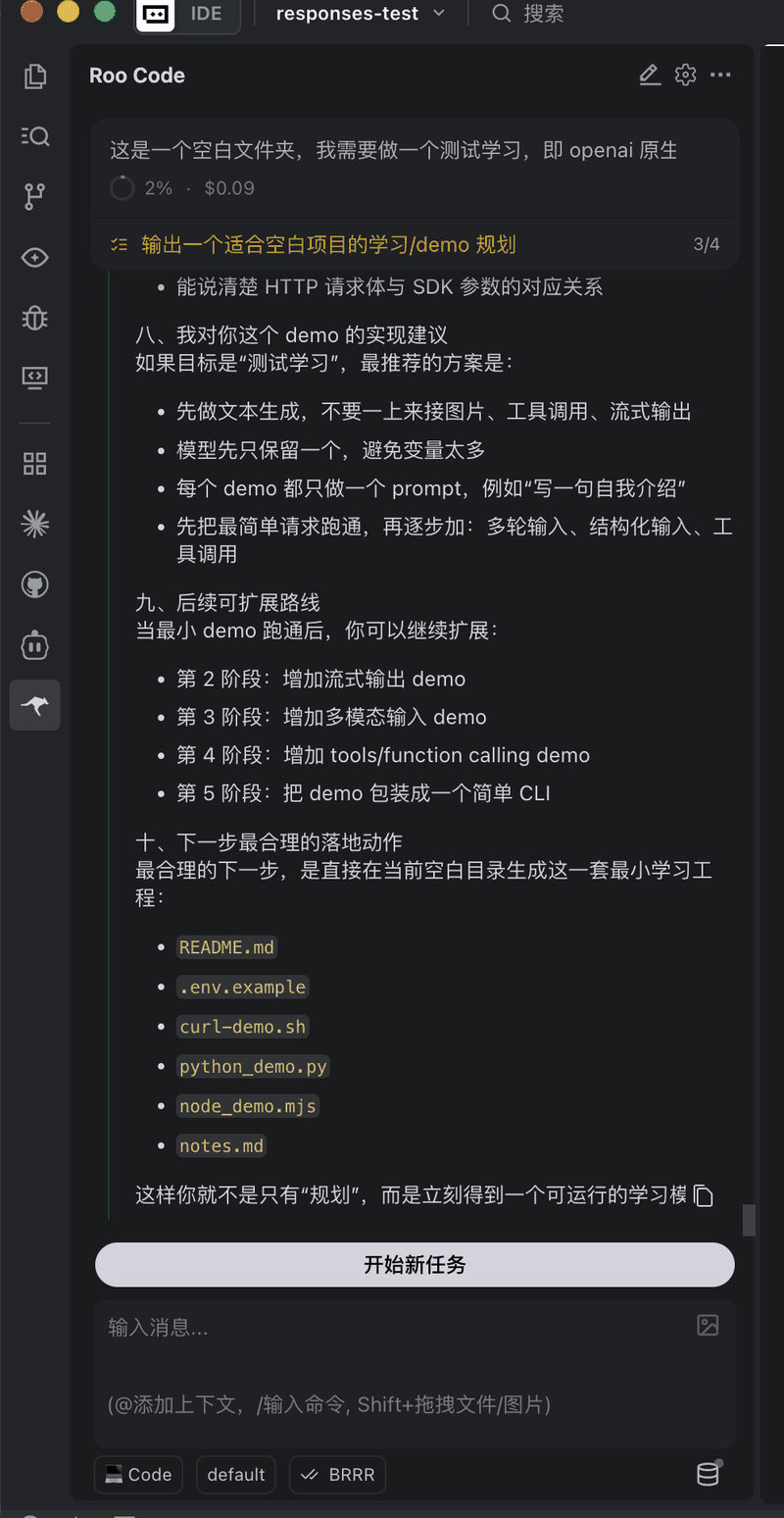
VS Code-based IDEs such as Trae can install the Roo Code plugin too. We verified that Roo Code installed inside Trae, configured with the OpenAI provider as above, runs tool calls and tasks over the Responses endpoint normally — effectively adding a Responses channel to Trae, whose own custom models only support chat/completions (with the samegpt-5.4 model ceiling).
Quick Installation
Method 1: VS Code Marketplace (Recommended)
1
Open Extensions Marketplace
Press
Ctrl+Shift+X (Windows/Linux) or Cmd+Shift+X (macOS) in VS Code2
Search and Install
Search for “Roo Code” and click InstallExtension ID:
RooVeterinaryInc.roo-cline3
Open Plugin
After installation, click the Roo Code icon in the left activity bar
Method 2: Open VSX Registry
Visit Open VSX Registry and search for Roo Code to install.Configure APIYI
Basic Configuration
1
Open Settings
Click the gear icon (settings button) in the Roo Code sidebar
2
Select API Provider
Choose OpenAI Compatible from the API Provider dropdown
3
Configure Connection Parameters
Base URL:
https://api.apiyi.com/v1API Key: Your APIYI key (format: sk-***)Model Name: Enter the model name you want to use4
Save Configuration
Click save, and Roo Code will automatically verify the connection
Get APIYI Key
1
Visit APIYI Dashboard
Login to
api.apiyi.com2
Create API Key
Go to the “Token Management” page (
api.apiyi.com/token) and click “Create New Token”3
Copy Key
Copy the generated API Key (format:
sk-***) and paste it into Roo Code configurationMulti-Mode Configuration (Core Feature)
Roo Code’s unique feature is the ability to assign different AI models to different development modes for specialized division of labor.Five Development Modes
- Architect Mode
- Code Mode
- Ask Mode
- Debug Mode
- Orchestrator Mode
Architecture Mode - For system design and architectural planningRecommended Models:
- Claude Sonnet (strong reasoning, excels at architecture design)
- GPT-4o (comprehensive technical knowledge)
- DeepSeek V3 (deep thinking, cost-effective)
Configure Multi-Mode
1
Open Mode Settings
Find the Mode Configuration section in Roo Code settings
2
Select Model for Each Mode
Configure separately for each mode:
- API Provider
- Model Name
- Temperature (creativity parameter)
- Max Tokens
3
Switch Modes
In the Roo Code interface, use the mode selector to switch the current mode
Recommended Models
Roo Code supports 400+ mainstream AI models through APIYI, including OpenAI, Google Gemini, Claude, DeepSeek, and domestic models.View Programming Model Recommendations
View the latest programming model recommendations, performance comparisons, and usage suggestions. Includes detailed classifications like top performance models, cost-effective models, reasoning-enhanced models, and more.
Why Not List Specific Models Here?AI models update and iterate very quickly. To ensure you get the most accurate model recommendations, we maintain the latest model list, performance data, and usage suggestions on the Model Recommendations page.
Core Features
Agent Intelligence Mode
Roo Code’s most powerful feature is Agent Mode, where AI can autonomously plan and execute complex tasks:Smart Multi-File Editing
Understands project structure and automatically modifies multiple related files:Code Generation
Code Review and Optimization
Smart Refactoring
Test Generation
Common Commands
Roo Code provides rich command palette commands:Advanced Features
API Configuration Profiles
Create different API configuration profiles for different projects or teams:Codebase Indexing
Roo Code automatically indexes your codebase to understand project structure:- Auto-discover file relationships
- Understand code dependencies
- Intelligent context awareness
- Cross-file reference tracking
MCP Integration
Connect external tools via Model Context Protocol:- Database queries
- API calls
- File system operations
- Git operations
- Custom tool integration
Custom Prompt Templates
Configure common prompt templates in settings:Usage Tips
1. Provide Clear Context
❌ Vague Description
“Optimize this function”
✅ Clear Description
“Optimize this function’s performance, focus on loop efficiency and memory usage, add appropriate comments explaining the optimization approach”
2. Execute Complex Tasks Step-by-Step
For complex tasks, recommend breaking them into multiple steps:1
Step 1: Architecture Design
Use Architect Mode to design overall architecture
2
Step 2: Module Implementation
Switch to Code Mode to implement modules
3
Step 3: Debug and Optimize
Use Debug Mode to troubleshoot issues
4
Step 4: Integration Testing
Use Orchestrator Mode to coordinate integration
3. Leverage Mode Switching
Switch to the most appropriate mode for different task types:- Need architecture design? → Architect Mode
- Writing code implementation? → Code Mode
- Quick consultation? → Ask Mode
- Encountered a bug? → Debug Mode
- Complex refactoring? → Orchestrator Mode
4. Review and Approve Changes
FAQ
What's the difference between Roo Code and Cline?
What's the difference between Roo Code and Cline?
Main Differences:
- Multi-Mode Configuration: Roo Code’s core feature, not supported by Cline
- Codebase: Roo Code is a fork of Cline, but developed independently
- Update Frequency: Roo Code updates more frequently with faster feature iteration
- Community: Both have active communities but with different focuses
- Need multi-mode? → Roo Code
- Need stability? → Cline
- Both are free to try, choose what fits you best
Why is connection failing or models not working?
Why is connection failing or models not working?
Common Causes and Solutions:
-
Base URL Error:
- ✅ Correct:
https://api.apiyi.com/v1 - ❌ Wrong:
https://api.apiyi.com
- ✅ Correct:
-
Invalid API Key:
- Check if key is copied correctly (watch for leading/trailing spaces)
- Confirm sufficient account balance
- Verify key status is “Enabled”
-
Wrong Model Name:
- Ensure correct model name is used
- Refer to Model List
-
Network Issues:
- Check network connection
- Try restarting VS Code
How to configure different models for different modes?
How to configure different models for different modes?
Configuration Steps:
- Open Roo Code settings (gear icon)
- Find Mode Configuration section
- Configure separately for each mode:
- Architect Mode →
claude-sonnet-4 - Code Mode →
deepseek-coder - Ask Mode →
gpt-4o-mini - Debug Mode →
claude-sonnet-4 - Orchestrator Mode →
gpt-4o
- Architect Mode →
- Save configuration
Will Roo Code automatically modify my code?
Will Roo Code automatically modify my code?
No automatic modification, requires your approval:
- Roo Code first displays suggested changes
- You can:
- View Diff (comparison)
- Approve (Apply) changes
- Reject changes
- Modify then approve
- All changes are under your control
How to save API usage costs?
How to save API usage costs?
Cost-Saving Strategies:
-
Smart Model Selection:
- Use cheaper models for simple tasks (GPT-4o-mini, DeepSeek)
- Use premium models only for complex tasks (Claude Opus, GPT-4o)
-
Leverage Multi-Mode Configuration:
- Ask Mode → Use cheapest models
- Code/Debug Mode → Use mid-tier professional models
- Architect Mode → Use premium models only when needed
-
Recharge Bonuses:
- APIYI offers recharge bonuses (10%-20%)
- View Recharge Promotions
-
Control Context Length:
- Clear unnecessary chat history
- Focus on current task, reduce irrelevant context
Which programming languages does Roo Code support?
Which programming languages does Roo Code support?
Almost all mainstream programming languages, including but not limited to:
- Web: JavaScript, TypeScript, HTML, CSS, React, Vue, Angular
- Backend: Python, Java, Go, Rust, C++, C#, PHP, Ruby
- Mobile: Swift, Kotlin, Dart (Flutter), React Native
- Data: SQL, R, Julia
- Other: Shell, YAML, JSON, Markdown
- Selected AI model
- Model’s training data
- Language popularity
Compare to Other Tools
Pricing
Roo Code plugin is completely free. You only pay for AI model usage fees. The cost of using AI models through APIYI depends on the models you choose and usage volume.View Detailed Pricing
View detailed pricing and cost-effectiveness comparison for all models
APIYI offers recharge bonuses: the more you recharge, the higher the bonus (10%-20%). First-time recharge gets extra bonus. View Recharge Promotion Details.
Related Resources
- Roo Code Official Website
- Roo Code Official Documentation
- GitHub Repository
- VS Code Marketplace
- APIYI Quick Start
- Model Recommendations and Pricing
Get Help
Enterprise WeChat

Email Inquiry
Customer Service: support@apiyi.comBusiness: business@apiyi.com